OCBC Business

Easy Business Transaction from your Smartphone

Integrated mobile banking app with business banking transaction features from smartphone

Other Benefit

Easily Authorize Transactions

Forgot your hardware token? Our software token makes authorization easier than ever.

Monitor Your Transactions

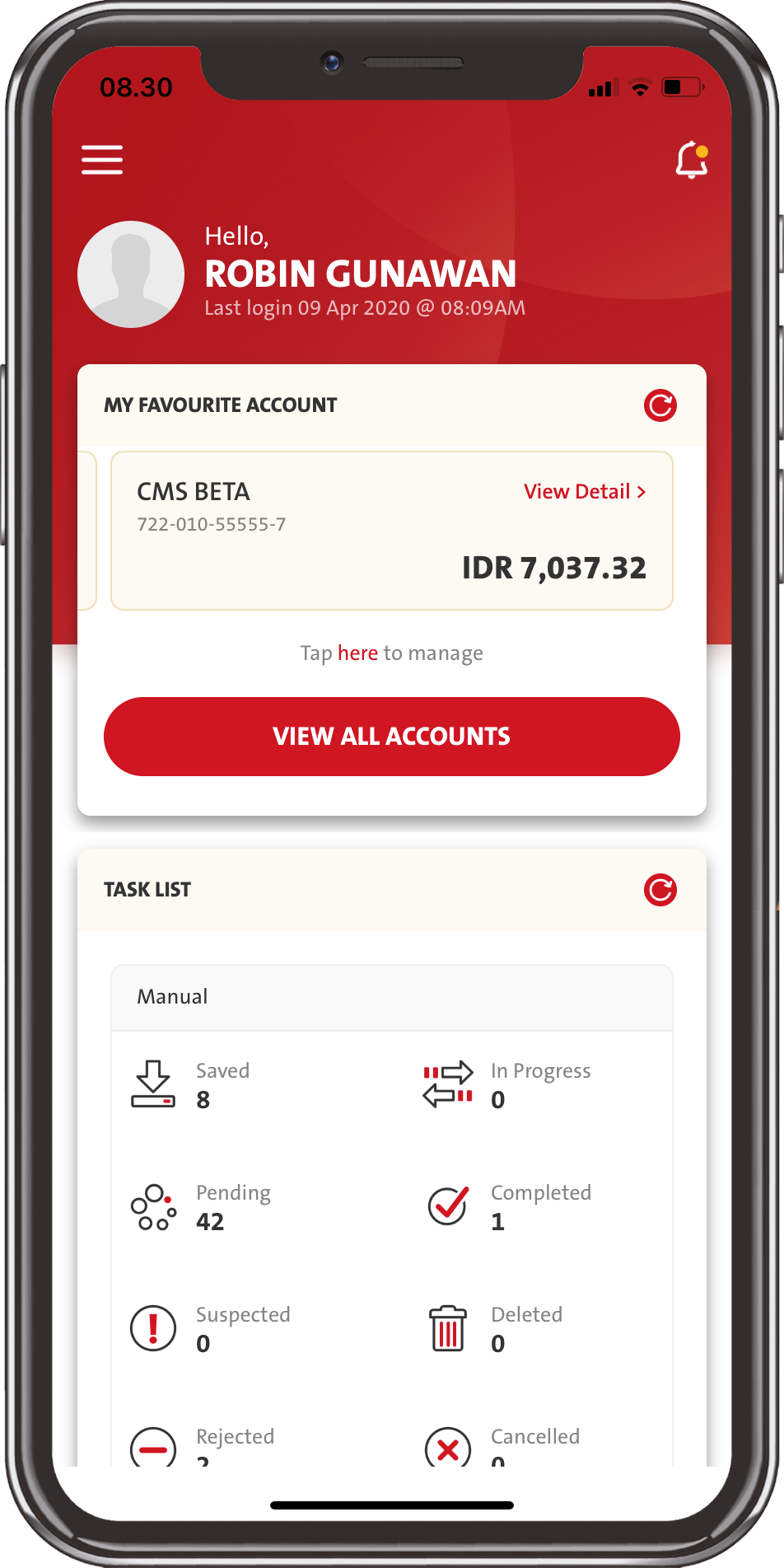
Track your financial transactions in real time from OCBC Business Mobile Tasklist

Competitive FX rates

Buy and sell foreign currencies right from your device.

Reset Your Password

Forgot Your Password? Recover your password with only a few taps via app.
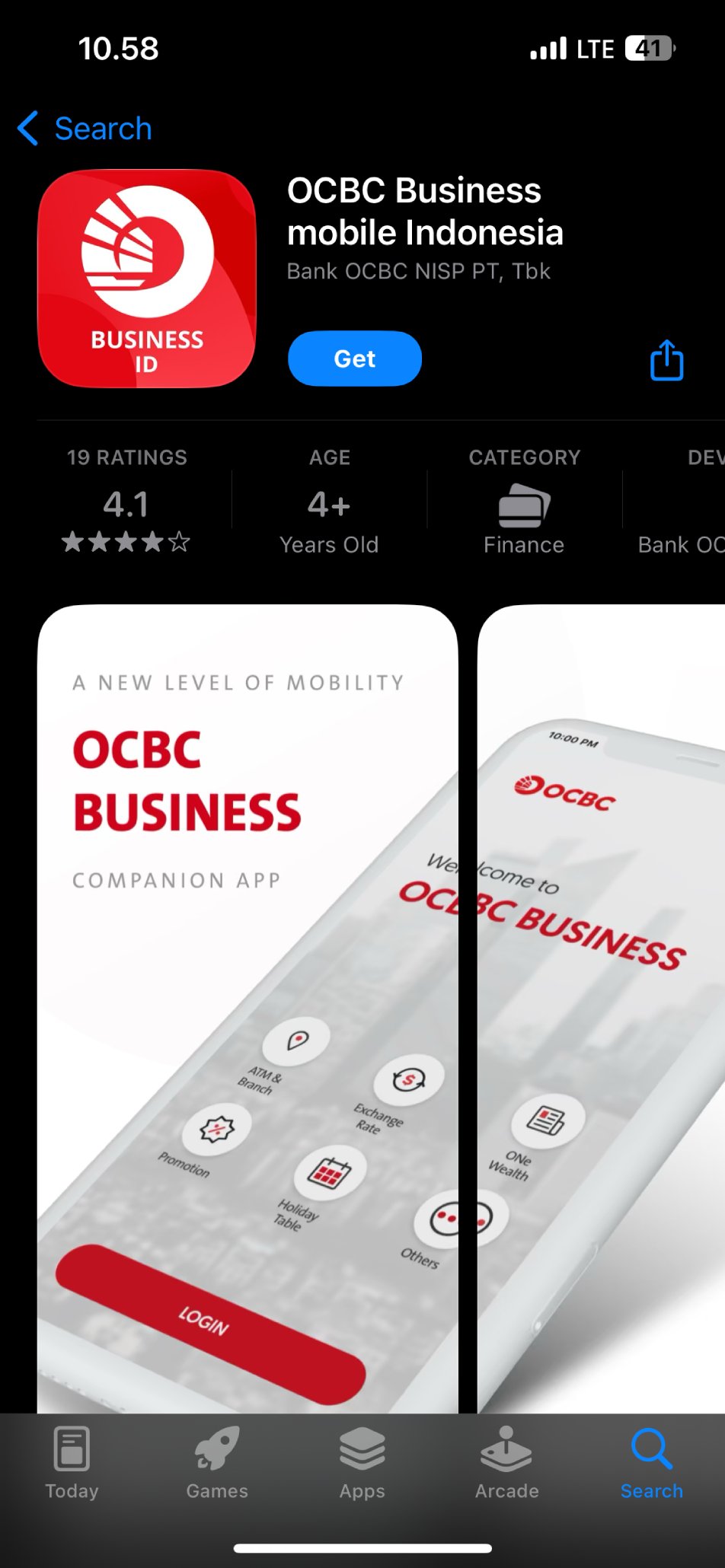
How to use OCBC Business Mobile version

Artikel Card Image
Artikel Card Image
Artikel Card Image
Artikel Card Image
Device Frame

Download

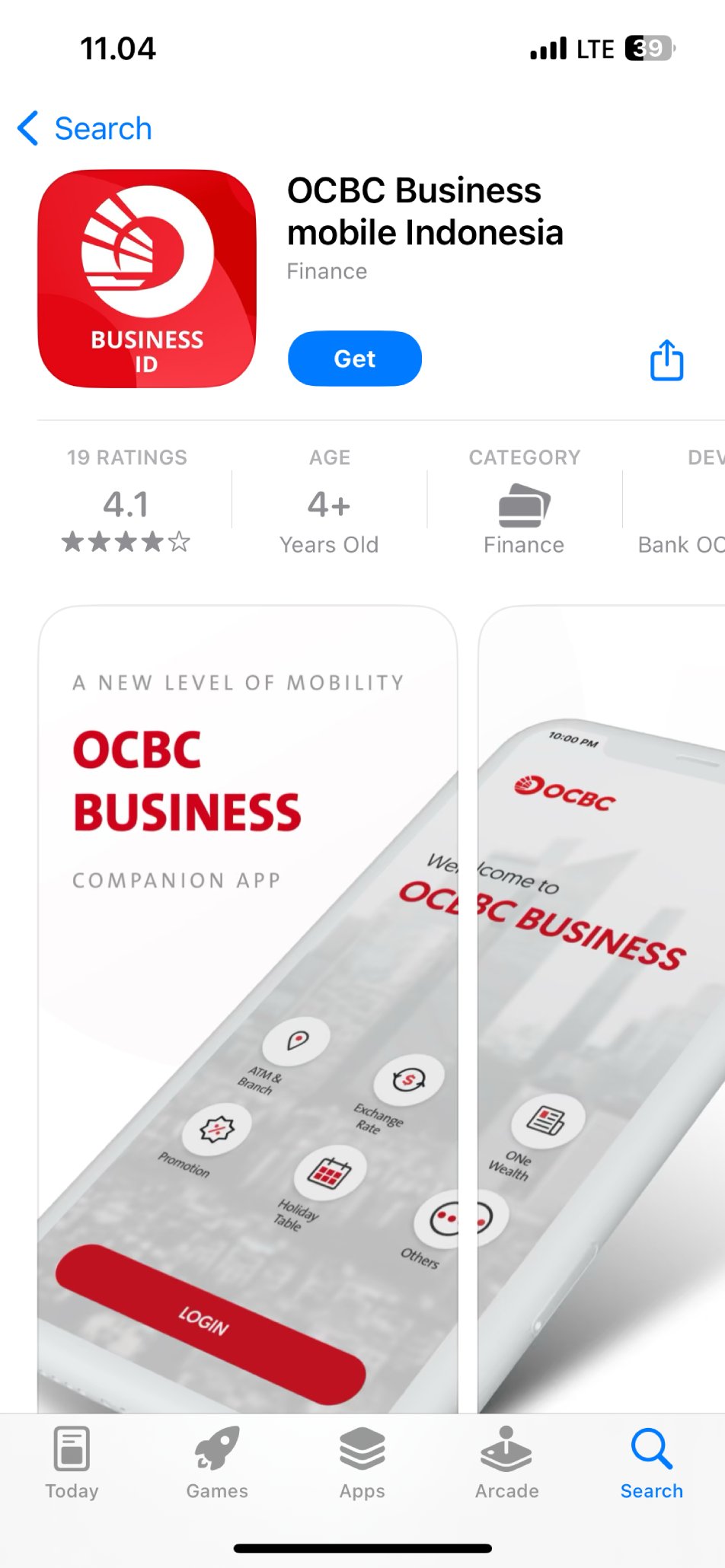
Download OCBC Business mobile app from App Store or Google Play

Step 1

Login

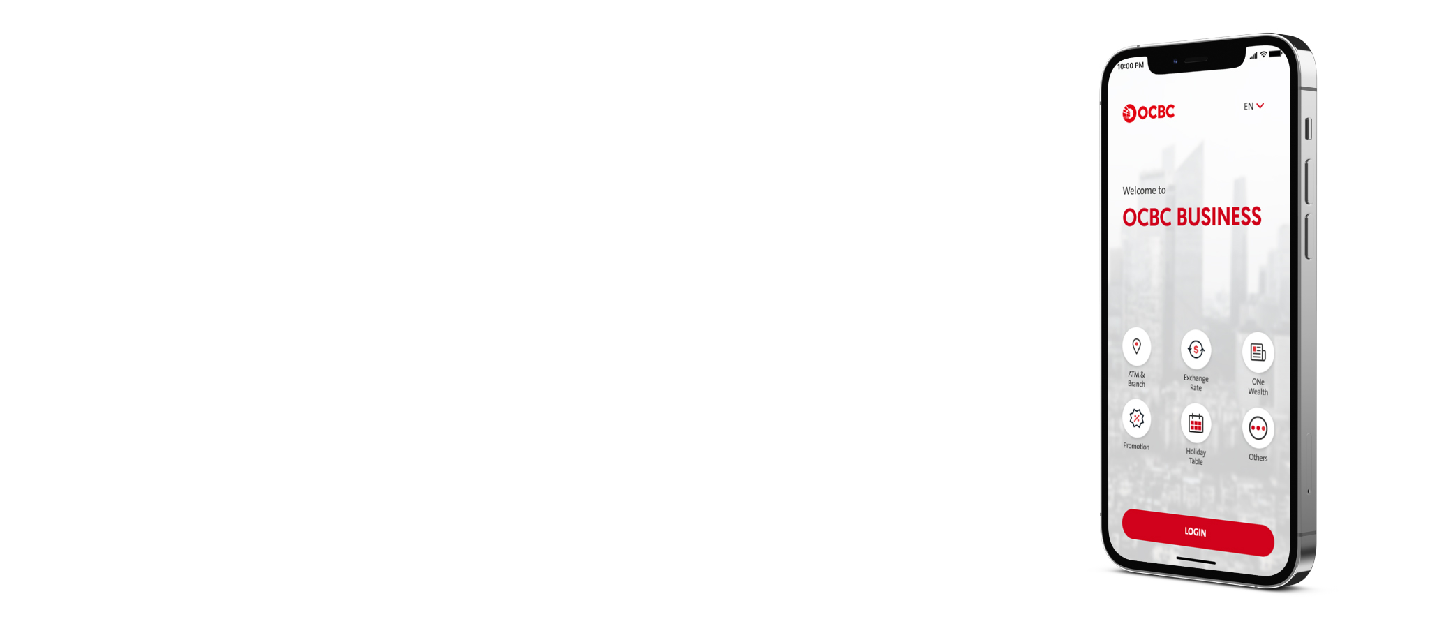
Login using the same credentials Organization ID, User ID, and Password that you use to login to your OCBC Business account.

Step 2

Verification

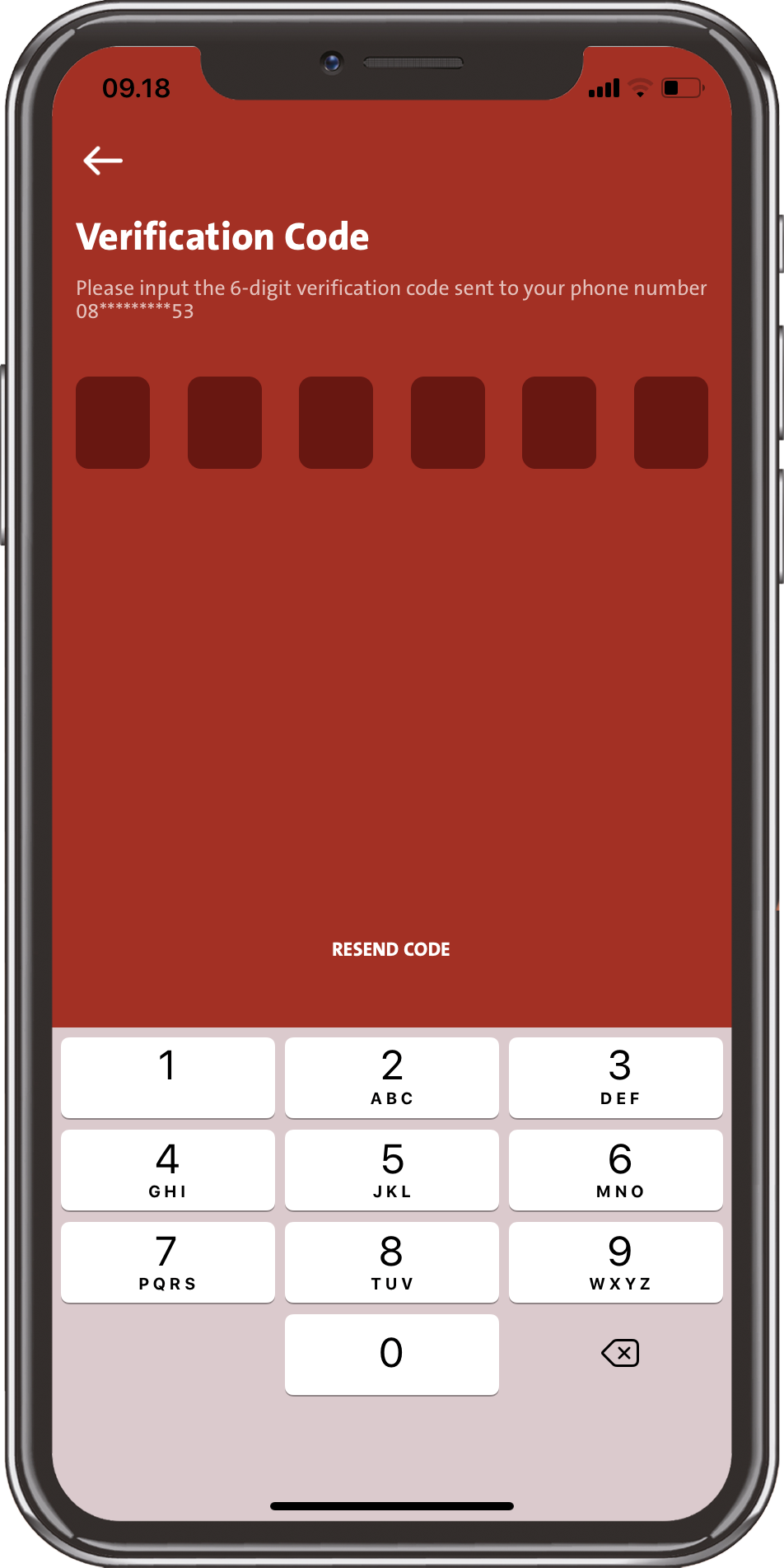
Input the 6-digit verification number (OTP) that will be sent to your registered phone number via text message (SMS).

Step 3

OCBC Business mobile

You can start using OCBC Business mobile.

Step 4

FAQ

Popular Questions About OCBC Business mobile

What are the minimum specs I need to access OCBC Business mobile?


  • Minimum Android Operating System version: 5.0 (Lollipop).
  • Minimum iOS version: 10.14.4.
Can all types of Users have access to OCBC Business mobile?

Yes, all types of Users (Administrator, Viewer, Maker, Verifier, Authorizer, Single Access) can have access to OCBC Business mobile.

Who could we contact shall there be any questions regarding OCBC Business Mobile services or should any problem occur?

You can contact Tanya OCBC:

Telephone: 1500-999 atau +62-21-26506300 (from overseas)
and choose “Business Banking Customer
Whatsapp: +62-812-1500999
Fax: 021-57944000 / u.p. Client Services
E-mail: clientservices@ocbc.id
Service hours: Monday – Friday: 08:00am – 07:00pm (West Indonesia Time Zone)
Saturday: 08:00am – 12:00pm (West Indonesia Time Zone)
For Whatsapp Monday – Friday: 08:00am – 05:00pm (West Indonesia Time Zone)
(closed for public holidays)
What if I forgot my Password?

You can change your Password by doing the following steps:

  • send an e-mail request to clientservices@ocbc.id by using the registered e-mail address on OCBC Business. Please provide your Organization ID, User ID, and state the purpose of the e-mail, or
  • you can also change your Password by using the “Forgot My Password” feature that is available on the login screen of OCBC Business Mobile, or
  • if you have a User Administrator, the User have the ability to change your Password.
How many incorrect Password attempts are allowed?

Customer allow to enter 3 (three) incorrect Password.

What should I do if my password is locked?

If your password is locked and you still remember your password, then you can do the following steps:

  • send an request e-mail to clientservices@ocbcid by using the registered e-mail address on Velocity@ocbcnisp. Please provide your Organization ID, User ID, and state the purpose of the e-mail.
  • if you have a User Administrator, then the password could be unlocked by that User.
How to keep my Password safe?
  • You can change your Password periodically or you can also change it in the event where you feel that other people knows your Password.
  • OCBC Business and OCBC Business mobile Password consists of minimum 8 and maximum 12 characters (minimum combination of 1 (one) upper case letter, 1 (one) lower case letter, and a number).
  • Please refrain from using any passwords that have strong correlation with you as an individual such as your name, your birthday, or your phone number.
Will I be able to change my Password at anytime?

Yes, you will be able to change your password at anytime via Settings – Security - Change Password menu.

Shall there be no activities happening in OCBC Business Mobile, how long is the standby time until the system automatically logged me off?

OCBC Business Mobile will automatically log you off after 15 (fifteen) minutes of inactivity.

What does it mean by 2-Factor Authentication?

2-Factor Authentication is a 2 (two) step user verification when user conduct online transactional banking. OCBC Business Mobile implemented 2-Factor authentication by using Organization ID, User ID, and Password to login and Token to authorize transaction.

Is Token needed to access OCBC Business mobile?

Token is used to secure financial transactions and will only be given to Single Access User and Authorizer User that has been appointed to authorize transactions. Users do not need Token to login to OCBC Business mobile.

How many incorrect Password attempts are allowed until the Token has been locked?

There will only be 3 (three) incorrect attempts allowed.

What should I do when my PIN or my Token has been locked?
  1. For Hardware Token, you could send an e-mail request to clientservices@ocbcnisp.com by using your registered e-mail on Velocity@ocbcnisp. Please provide your Organization ID, User ID, Token serial number, and lock code (if locked), and please state the purpose of the e-mail.
  2. For Software Token, you could send an e-mail request to clientservices@ocbcnisp.com by using your registered e-mail on Velocity@ocbcnisp. Please provide your Organization ID, User ID, Token type which is Software Token, and please state the purpose of the e-mail. After Token can be used, You could do the PIN changes yourself by accessingthe Settings – Security – Token Management - Forgot PIN menu. You will receive a One Time Password (OTP) verification code via text message (SMS), then you can create a new Software Token PIN.


Please ensure that you remember the PIN for a better Velocity Mobile experience in the future.

What should I do if I suspect an unauthorized transaction on my account?
If you suspect any fraudulent activities on your account, please contact Call OCBC immediately.
What are the types of account that are visible via OCBC Business Mobile?

From OCBC Business Mobile, you could get information regarding Current Account, Saving account, and Time Deposit.

Am I able to download my account statements from OCBC Business Mobile?

You are able to download your account statement in PDF format and according to specific period.

How far back will I be able to see my historical account statement?

You will be able to trace back up to 90 (ninety) days.

How often will my account information be updated?

Your account information will be updated real-time.

Why am I not able to see my another account information?

The account information displayed on your OCBC Business Mobile is the same as what the system will display on your OCBC Business (website), the account restrictions is based on the access granted to your user when it was first registered. Should there be any new accounts that you wanted to have access to via OCBC Business mobile or OCBC Business (website), please contact Relationship Manager/Sales or Call OCBC to add more accounts.

What is the limit amount to do transactions?
  • LLG/SKN: maximum of IDR 1.000.000.000,00 (one-billion rupiah) in 1 (one) transaction.
  • RTGS: more than IDR 100,000,000.00 (one-hundred million rupiah) in 1 (one) transaction.
  • Online Transfer: maximum of IDR 50,000,000.00 (fifty-million rupiah) in 1 (one) transaction and maximum of IDR 500,000,000.00 (five-hundred million rupiah) per 1 (one) day per account.
  • Purchase of foreign currency transaction against rupiah (via OCBC NISP Fund Transfer or Online FX menu): maximum equivalent USD 25.000,00 (twenty-five hundred US dollar) per month.
  • Sale of foreign currency transaction against rupiah (via Online FX menu): maximum equivalent USD 25.000,00 (twenty-five hundred US dollar) in 1 (one) transaction.
What is the limit number of transactions per day?

There are no maximum number of transactions per day.

Is there any cut-off time for transactions done via Velocity Mobile?
  • OCBC NISP Fund Transfer: 24 hours – 7 days a week
  • LLG/SKN: 03:00 pm West Indonesia Time Zone (business day)
  • RTGS: 03:30 pm West Indonesia Time Zone (business day)
  • Telegraphic Transfer: 02:30 pm West Indonesia Time Zone (business day)
  • Online Transfer: 24 hours – 7 days a week
  • Bill & Tax Payment: 24 hours – 7 days a week
  • Online FX: 04:00 pm West Indonesia Time Zone (business day)
How to initiate activation for OCBC Business Mobile? How can I bind my devices?
  • Please ensure that you have a OCBC Business account.
  • You can contact your Relationship Manager/Sales or contact Call OCBC to register your phone number to your OCBC Business account.
  • You can download OCBC Business Mobile from the App Store or Play Store and login using the same credentials that you use to login to your OCBC Business account.
  • Please input the 6-digit verification number (OTP) that will be sent to your registered phone number via text message (SMS).
  • You can start using OCBC Business Mobile.
Will Authorizer User receive any notifications regarding transactions that needs to be authorized?

As long as the User has gone through the hardware binding process, then he/she will receive notifications automatically for authorization.

Is there any transaction status notifications?
  • Status/Sender Alert à Notifications regarding the latest transaction status.
  • Beneficiary Alert à Notifications that the beneficiary will receive regarding transactions that has been processed by the bank.

Users could set the e-mail address for the notifications to be sent to when creating the transaction.

How will I be able to know whether the transactions I created via OCBC Business Mobile has been successful/failed?

After the transaction has been authorized, there will be an information about transaction status, whether it is successful/failed. You can also open your account statement to check if your account has been debited correctly (the nominal) as when you create the transaction.

Will I be able to change, add, or cancel future-dated transaction from OCBC Business Mobile?

Yes, OCBC Business Mobile could cater all needs regarding future-dated transactions.

Is there any fee related to the usage of OCBC Business Mobile?

OCBC Business Mobile will not be charging administration additional fee for their users. However, users still subject transactional fees in accordance with applicable regulations for some services (similar to fees charged when users use OCBC Business), such as:

  1. LLG/SKN
    • Giro Umum, Multicurrency, Business Smart, Tabungan: Rp 2.500,00
    • Business Signature: Rp 1.500,00
  2. RTGS
    • Giro Umum, Multicurrency, Business Smart, Tabungan: Rp 25.000,00 (≤ 02:00 pm West Indonesia Time Zone) dan Rp 30.000,00 (≤ 02:00 pm West Indonesia Time Zone)
    • Business Signature: Rp 22.500,00 (≤ 02:00 pm West Indonesia Time Zone) dan Rp 28.000,00 (≤ 02:00 pm West Indonesia Time Zone)
  3. Online Transfer : IDR 6,500.00
  4. Foreign Currency Transfer
    • Telex: Rp 50.000,00 (Giro Umum, Tabungan), Rp 100.000,00 (Multicurrency, Business Smart), Rp 75.000,00 (Business Signature)
    • Full Amount: equivalent USD 25
    • Provision: 0,125% with minimum USD 10 and maximum USD 15 (Giro Umum, Tabungan), Free (Multicurrency, Business Smart, Business Signature)
  5. PLN Bill Payment: Rp 2,000.00
  6. Telkom/Indihome, BPJS Kesehatan, and PDAM Bill Payment : Rp 2,500.00
What are the services that available OCBC Business Mobile?
OCBC Business Mobile could provide variety of transactional banking services such as account information, fund transfer, bill payment and tax payment.
Will the activities that has been done on OCBC Business (website) show up on OCBC Business Mobile?
The OCBC Business (website) and OCBC Business Mobile has been integrated, therefore all transactions and activities that have been done on the OCBC Business (website) will be synchronized to OCBC Business Mobile, vice versa.
What if I would like to replace my old device with a new device, will I be able to have access to OCBC Business Mobile from the new device?
1 (one) User ID from 1 (one)  OCBC Business Organization ID could be used on 2 (two) different devices. You could conduct the device binding process (as on the previous device) on the new device or you could also unbind your old device first, and then conduct the device binding process on your new device.
How can I unbind my bound Velocity Mobile device?
You could go to Settings – Security - Bound Devices, then you could select the device that you would like to unbind from Velocity Mobile or via login screen by choosing “Change User”.
What if I lost my device and/or my phone number?
Please directly contact Call OCBC NISP at 1500-999 and choose “Business Banking Customer” to block the phone number registered on Velocity@ocbcnisp system, then please inform us of your new phone number or if the old phone number could be re-used, then you can use the old phone number.

Can't find the question you're looking for?

View Other Questions

Download OCBC Business Now

It's time to enjoy business transactions right from your smartphone.