OCBC Merchant

Manage Your Business Under One Platform

One-stop solution for managing your business

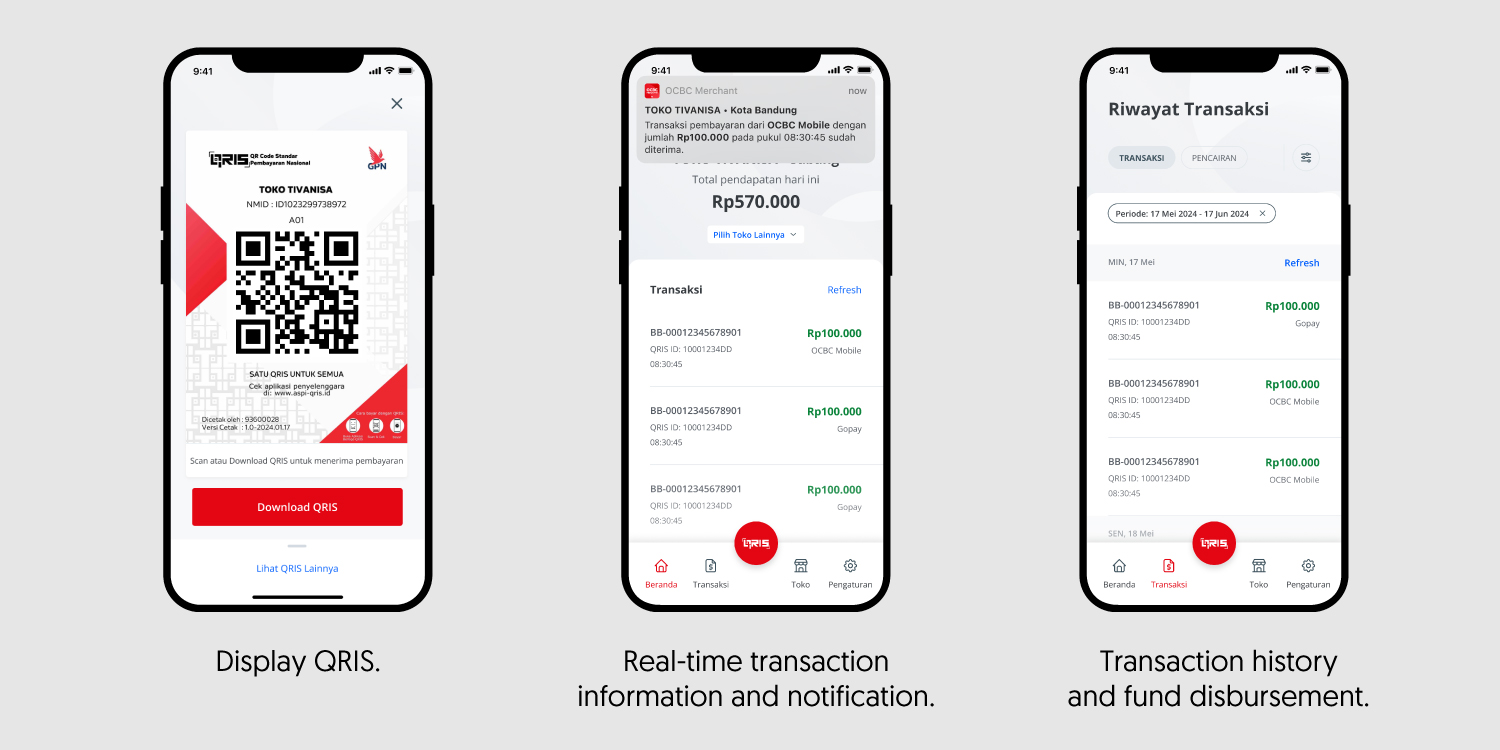
Static QRIS

Fast and secure payment acceptance

Real-time Notification

Real-time transaction information at your fingertips

Transaction History

Transparent and organized financial management

Further Information

Related information about OCBC Merchant

OCBC Merchant is a digital platform to facilitate OCBC merchants in receiving payment.

Main features:

OCBC Merchant - Features

How to onboard to OCBC Merchant

As an OCBC Customer

  1. Download OCBC Merchant from App Store/ Play Store.
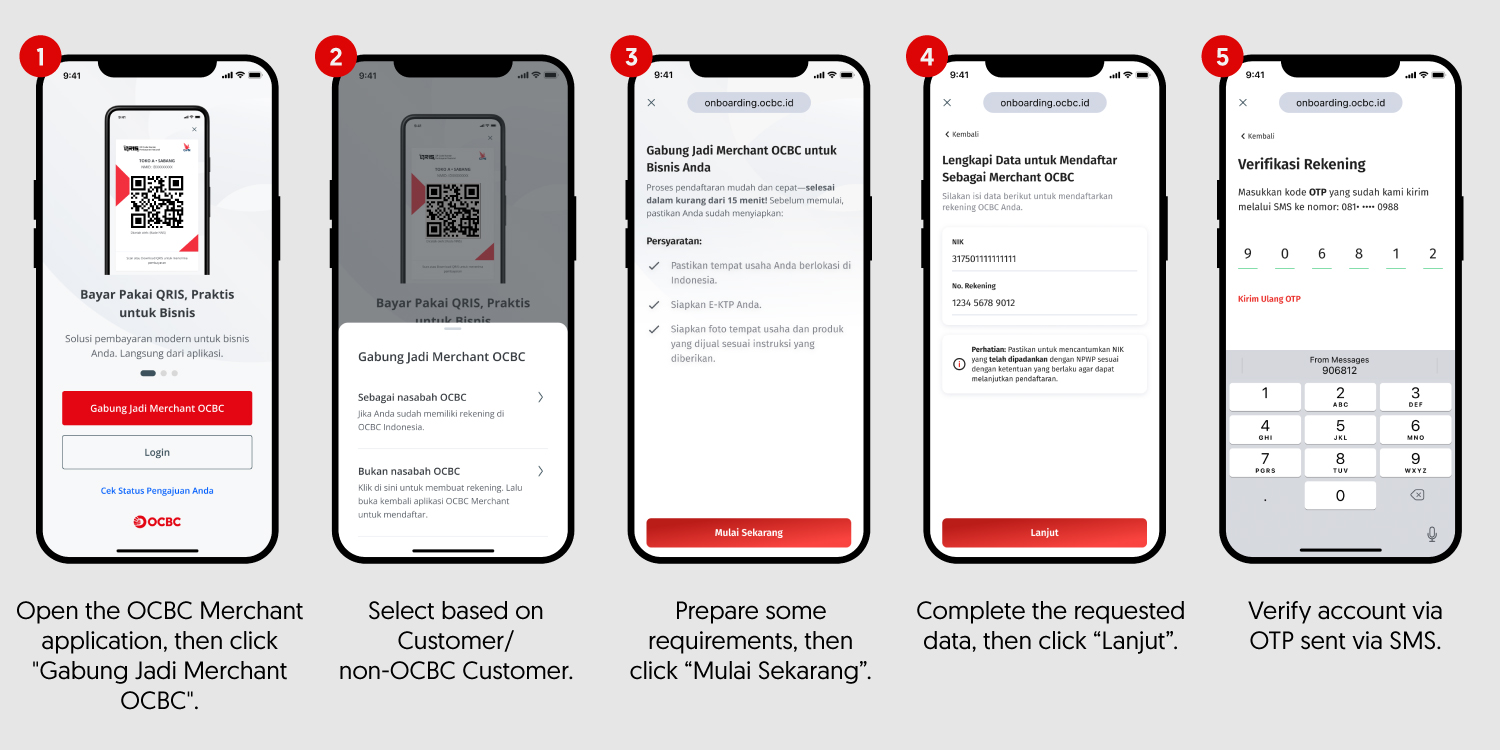
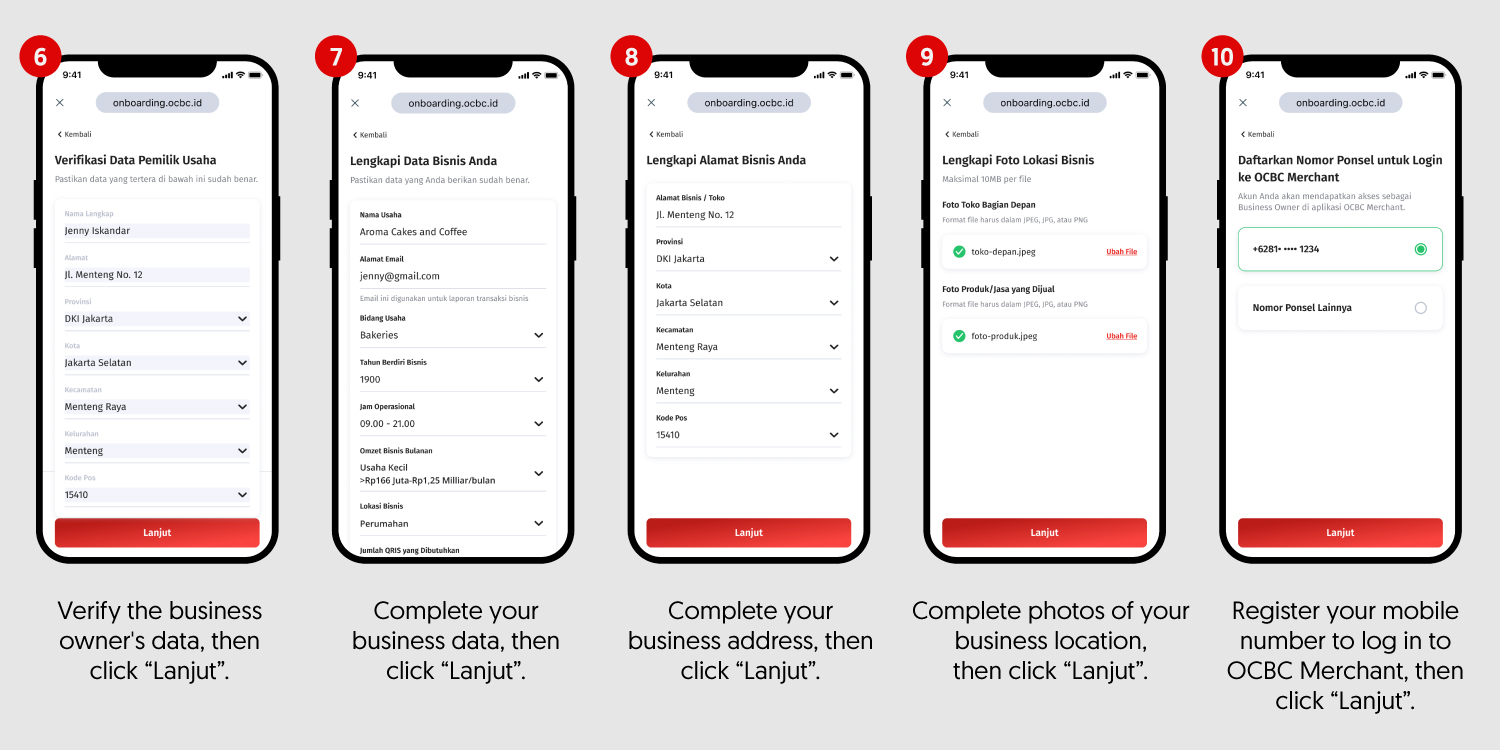
  2. Fill registration form in OCBC Merchant (see guide below).
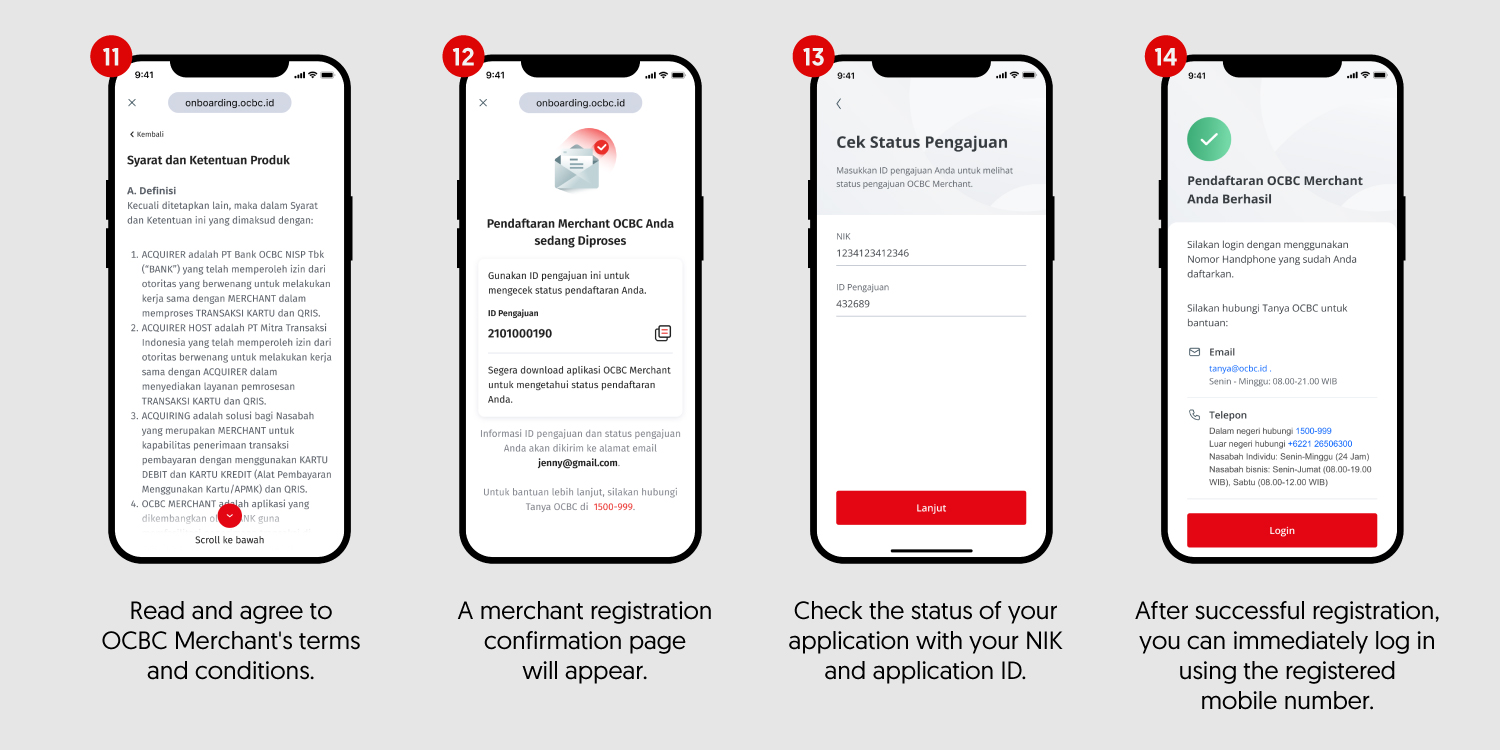
  3. Check your application status in OCBC Merchant.
  4. Learn how to use OCBC Merchant here.

As a Non OCBC Customer

  1. Click web.ocbc.id/daftarmerchant to open your OCBC account
  2. After becoming OCBC customer, download OCBC Merchant.
  3. Fill registration form in OCBC Merchant (see guide below).
  4. Check your application status in OCBC Merchant.
  5. Learn how to use OCBC Merchant here.

Guide to fill registration form:

OCBC Merchant - Register

Document Requirements LLC CV Foundation Personal
Merchant Terms and Conditions If there are special agreement, MCC applies
Identity of the owner or person in charge ✓ On behalf of the director ✓ On behalf of administrators
Taxpayer Identification Number ✓ On behalf of a person
Registration certificate (TDP) or business registration number (NIB)
Business License (in the form of a business permit or equivalent document) -
*For Offline Merchants: Location photos (front, left, and right view), photos of goods & business activities and sales, and photos of signage.
*For Online Merchants: Website display photos and business location photos (warehouse & office)
Deed of incorporation or amendment -
Decree of the Ministry of Law and Human Rights - -

Notes:

  • For business entities that attach Business Identification Number, are still required to attach a Business License issued through OSS but do not need to attach a Company Registration Certificate.
  • For foundations with social categories (places of worship, social assistance, donations) do not require Business Identification Number and Business License.
  • If the acquisition process is carried out through the power of attorney from the Merchant, it is mandatory to attach a Copy of Power of Attorney and a Copy of the Power of Attorney ID Card.
  • For private merchants who apply for a type of payment using a card, they must attach a business license.

Merchant Discount Rate (MDR)* QRIS

Solution Merchant Category MDR
QRIS Micro with transaction amount ≤Rp500.000 0%
Micro with transaction amount >Rp500.000 0.3%
Regular 0.7%
Education 0.6%
Gas Station 0.4%
Social assistance/donations (mandatory on behalf of Foundations/Social Organizations) 0%

*MDR is calculated from the nominal amount of transactions processed

24/7 service via TANYA OCBC and email

Email: merchant_solutions@ocbc.id.
Call: 1500-999

FAQ

Frequently Asked Questions about OCBC Merchant

What is OCBC Merchant?

OCBC Merchant is a digital service platform owned by PT Bank OCBC NISP Tbk ("OCBC") that can be used by merchants who are OCBC customers in monitoring the receipt of QRIS transaction payments for their businesses and other matters related to OCBC QRIS.

What services are available in the OCBC Merchant application?

OCBC Merchant has the following services:

  1. Display QRIS;
  2. Receive payment notifications; and
  3. View transaction history and fund disbursement.
Who is referred to as a merchant?

Merchant is an OCBC customer who has registered as a merchant in the OCBC Merchant Solution service.

Can the merchant download the daily transaction report from the OCBC Merchant application?

The daily transaction report will be sent to the email registered on the Merchant Application Form in excel format (.csv).

How to register as a merchant?

You can register as a merchant by:

  1. Make sure you have become an OCBC customer.
  2. You must register by downloading the OCBC Merchant application from App Store/Play Store.
  3. Open the OCBC Merchant application, then click "Join as OCBC Merchant".
  4. Select "As an OCBC Customer".
  5. Follow each step of the data entry accurately until finished.
  6. Wait until your application is approved.
What documents do I need to prepare if I want to register as an OCBC merchant?

For individual customers, prepare your ID card (KTP), tax identification number (NPWP), a front view photo of your business (showing right and left), and a photo of your products.
Ensure that the registered NIK has been integrated with NPWP, and make sure that the phone number used to register for OCBC Merchant is the same as the phone number you used when opening your OCBC account, as OCBC will verify the data using the phone number registered in the Bank's system.

If I have already filled out the registration form, how can I know my application status whether it is approved or not?

Once you have completed the registration, OCBC Merchant will provide an Application ID through the application and email. You can check the application status in the OCBC Merchant app by entering the Application ID and NIK used during registration.

What should I do if I do not receive the Application ID during registration?

You can contact Tanya OCBC at 1500-999 / 021-2650-6300 (from overseas) or email to tanya@ocbc.id.

If I am a business entity customer, can I register using the OCBC Merchant digital registration form?

Currently, the OCBC Merchant digital registration form can only be used by individual customers who have Nyala Individual account and Nyala Bisnis Individual account (Current Account). Meanwhile, Business Entity customers can register by visiting the nearest branch.

What if the mobile number I registered at the bank is different from the mobile number I am currently using (because: damaged/lost/inactive)?

You can contact Tanya OCBC at 1500-999 / 021-2650-6300 (from overseas) or email tanya@ocbc.id or through OCBC Mobile app, to update your data. After successfully updating your data, please re-register as a merchant.

How long is the processing time to become an OCBC merchant through the OCBC Merchant app?

The processing time for the registration until approval is 3 working days.

Is there a notification received by the prospective merchant regarding the status of their registration?

After the prospective merchant has completed the registration in the application, the Application ID will be provided through the application and email. The prospective merchant can check the registration status through the application using that Application ID. The prospective merchant will also receive notification via SMS and email once the registration has been approved.

How to use the OCBC Merchant app?
  1. Merchant must first register by downloading the OCBC Merchant app. Next, follow the steps to fill out the form in the app.
  2. Merchant waits for the registration approval from OCBC within 3 working days.
  3. Once approved, merchant will receive an SMS / email notification.
  4. Merchant logs in for the first time using the registered phone number and creates a password.
  5. Log in to OCBC Merchant app with the phone number and password that have been created previously.
  6. OCBC Merchant app can now be used.
How do I log in to the OCBC Merchant application?

Merchant can log in using the phone number that has been registered on the Merchant Application Form along with the password that has been previously created.

What device is suitable for using OCBC Merchant application?

Devices with a minimum operating system of Android 5 or iOS 15.0.

How to add store employees and cashiers as new users in the OCBC Merchant app?

Only business owner account can add employee's and store cashier's phone numbers as new users to be granted certain access by:

  • To add Store access:
    1. Log in using the Business Owner account.
    2. Select "Store" on the Home screen and ensure the selected tab at the top of the screen is "Store".
    3. The "Manage Store'" screen will appear along with the list of registered stores.
    4. Click the ">" symbol on the store to which you want to add access.
    5. Fill in and complete the store details with the employee's phone number that you want to grant access to.
    6. Press "Save", the phone number in the Store has been successfully added.
  • To add Cashier:
    1. Log in using the Business Owner account.
    2. Select "Store" on the Home screen and ensure the selected tab at the top of the screen is "Cashier".
    3. Click "Add Cashier'"
    4. Complete the cashier's name and phone number, and select the store where the cashier will be placed.
    5. Ensure that the data is correct and complete, then click "Add".
    6. Choose the QRIS you want to use for that cashier, then click "Add".
    7. The new cashier has been successfully added.
What is in the OCBC Merchant app settings menu?

In the settings menu, you can change your password, view FAQs, terms and conditions, and contact Tanya OCBC.

If I have more than 1 business registered with the same phone number, can I access and use the OCBC Merchant application for all of my businesses?

Yes, as a business owner, you can access and use OCBC Merchant for several registered businesses with the same phone number.

Can one phone number be used for various roles: business owner, store employee, and cashier at the same time?

Currently, the use of 1 phone number in the OCBC Merchant application can only be used for 1 role. So, make sure the phone number you use is different for each role!

As a business owner and merchant, can I add store employees or cashiers as new users?

Yes, you can add store employees or cashiers as new users and there is no maximum number as long as each registered phone number is different.

Can I appoint an employee in my business to be registered and have access rights as a business owner on the application?

Yes, you can designate one employee in your business to gain access rights as a business owner in the application.

How to display QRIS for the payment process?

After logging in, click the red button with the text "QRIS" in the bottom center.

How do I receive payments through the OCBC Merchant app?
You can receive payments via QRIS, which can be accessed through the red button with the word "QRIS" at the bottom center, and show it to the customer so it can be used / scanned by entering the transaction amount.
How to check the payment data that has been successfully received?

When the payment is received, payment information can be seen on the homepage, transaction page, and push notifications. The homepage displays real-time transaction history for the day, while the transaction page allows filtering according to the desired date.

How to process a refund for a transaction that has occurred?

For the merchant refund process, you can contact merchantcare@ocbc.id or call Tanya OCBC at 1500-999 / 021-2650-6300 (from overseas).

What if the data verified by the Bank on the OCBC Merchant application is different from my actual data?

You can contact Tanya OCBC at 1500-999 / 021-2650-6300 (from overseas) or email to tanya@ocbc.id or through the OCBC mobile app to update your data first. After successfully updating your data, please try again to register as a merchant.

When does the merchant receive funds for the QRIS transaction that occurred?

Funds will be received by the merchant on the next working day (D+1) in total and have already been deducted for MDR (transaction fees).

What notifications will I receive from the OCBC Merchant app?

You will receive 3 notifications:

  1. SMS OTP notification for the first time accessing/logging into OCBC Merchant.
  2. Successful Onboarding SMS Notification.
  3. Push Notification that the payment has been received.
What if I don't get the notification?
You can contact merchantcare@ocbc.id or call Tanya OCBC at 1500-999 / 021-2650-6300 (from overseas).

Can't find the question you're looking for?

View Other Questions

Download OCBC Merchant

Integrated solutions for your business management