Reaktivasi OCBC Mobile

Reward & new benefit for you!​

Reactivate or reset you OCBC mobile User ID​

Enjoy great benefits every day by transacting again on OCBC mobile ​

Free monthly admin fee​

Top up e-wallet, pay bills & transfer​

Make easy payments with QRIS​

Domestic & overseas (Japan, Korea, China, Singapore, Malaysia, Thailand​

Enjoy daily transactions in multiple currencies​

KRW, THB, SAR, AED, USD, AUD, SGD, JPY, EUR, HKD, CHF, NZD, CAD, GBP, CNH

perlindungan-kesehatan

Earn bonus Poinseru from daily transaction​

Reedem for varoud exciting rewards​

Reactivation your OCBC mobile app/Reset your User ID with these simple steps:​

Select the guide that matches your needs:​

Artikel Card Image
Artikel Card Image
Artikel Card Image
Artikel Card Image
Device Frame

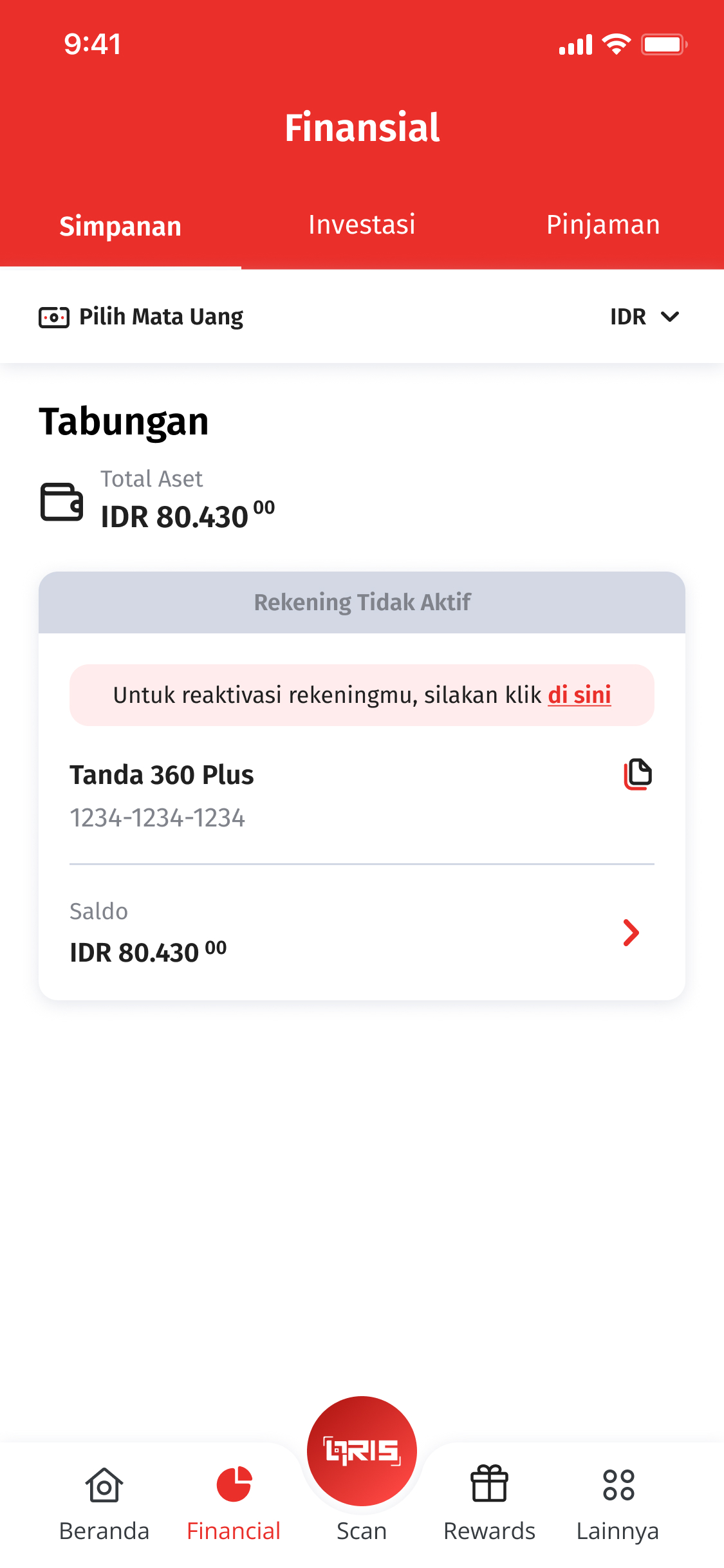
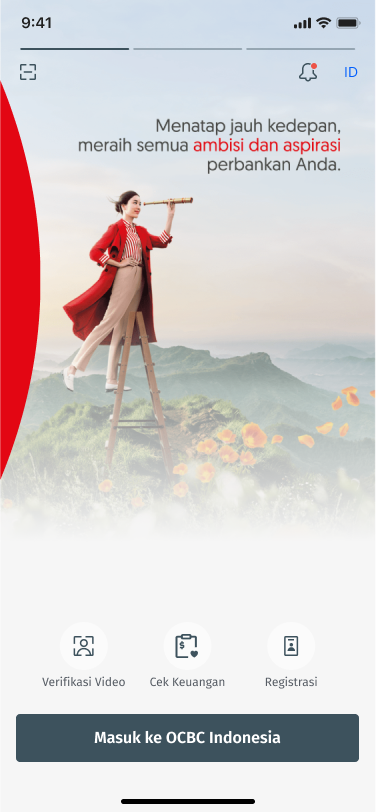
Login OCBC mobile​

Login OCBC mbile and go to Financial menu. If you have an inactive account, click “Click Here” button

Step 1

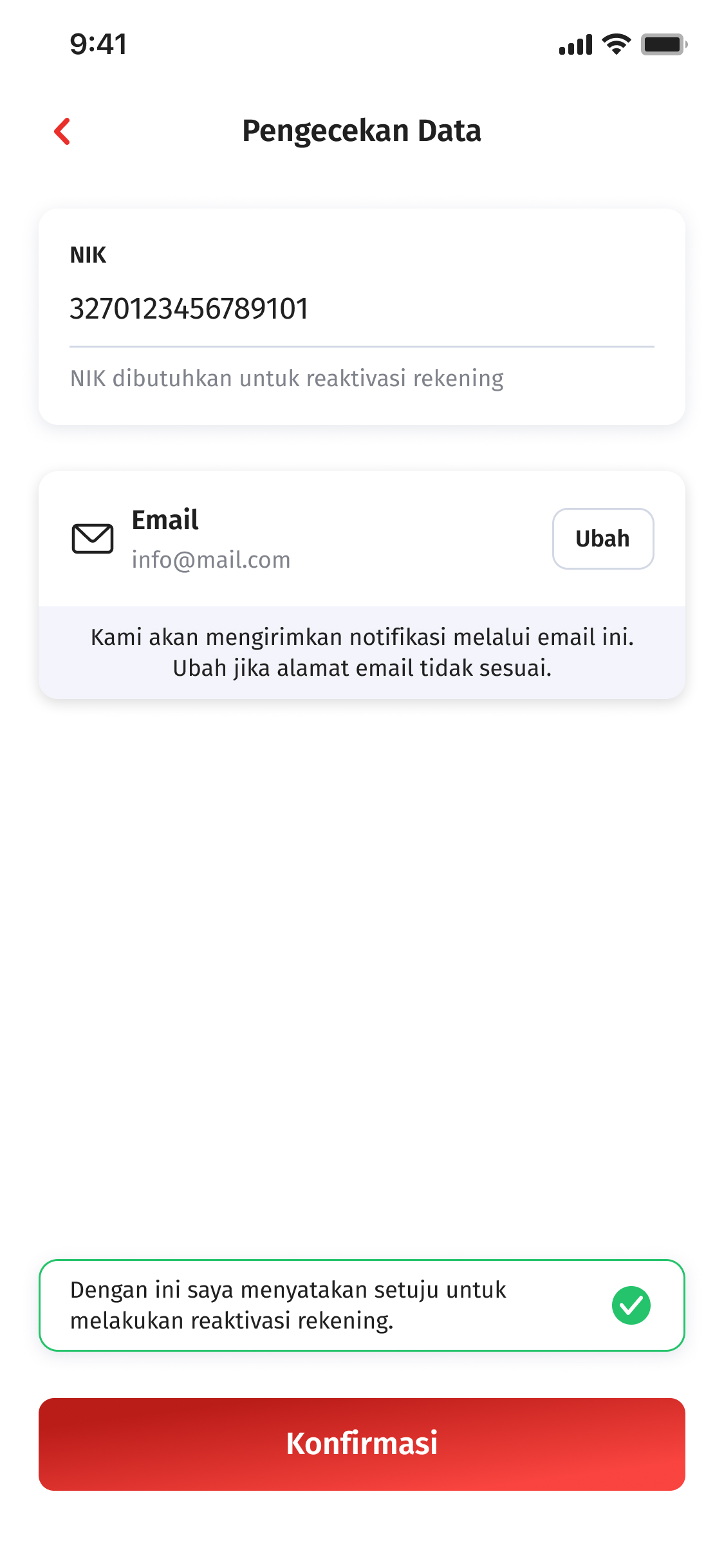
Complete the information​

Input and confirm your email adress​

Step 2

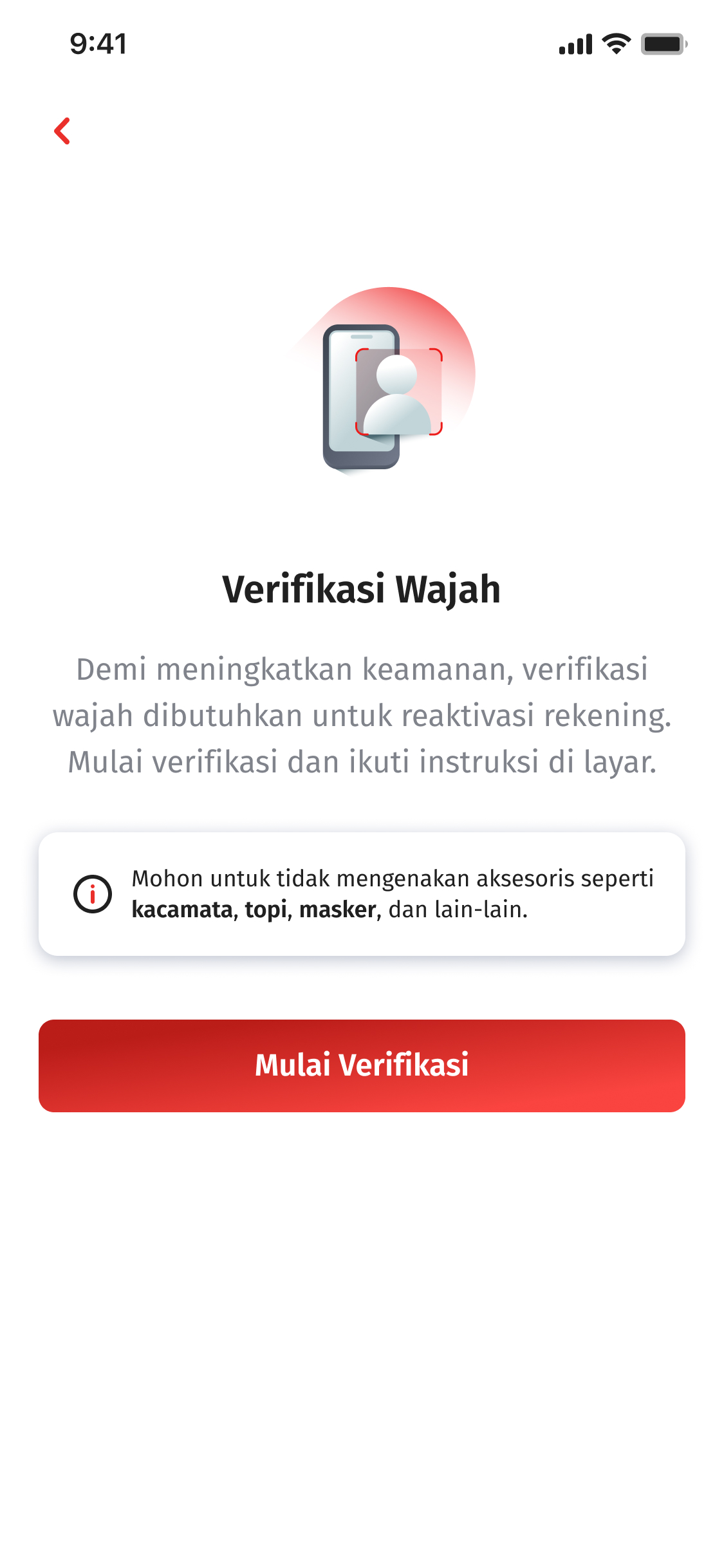
Verification​

Verify customer data throught e-KYC​

Step 3

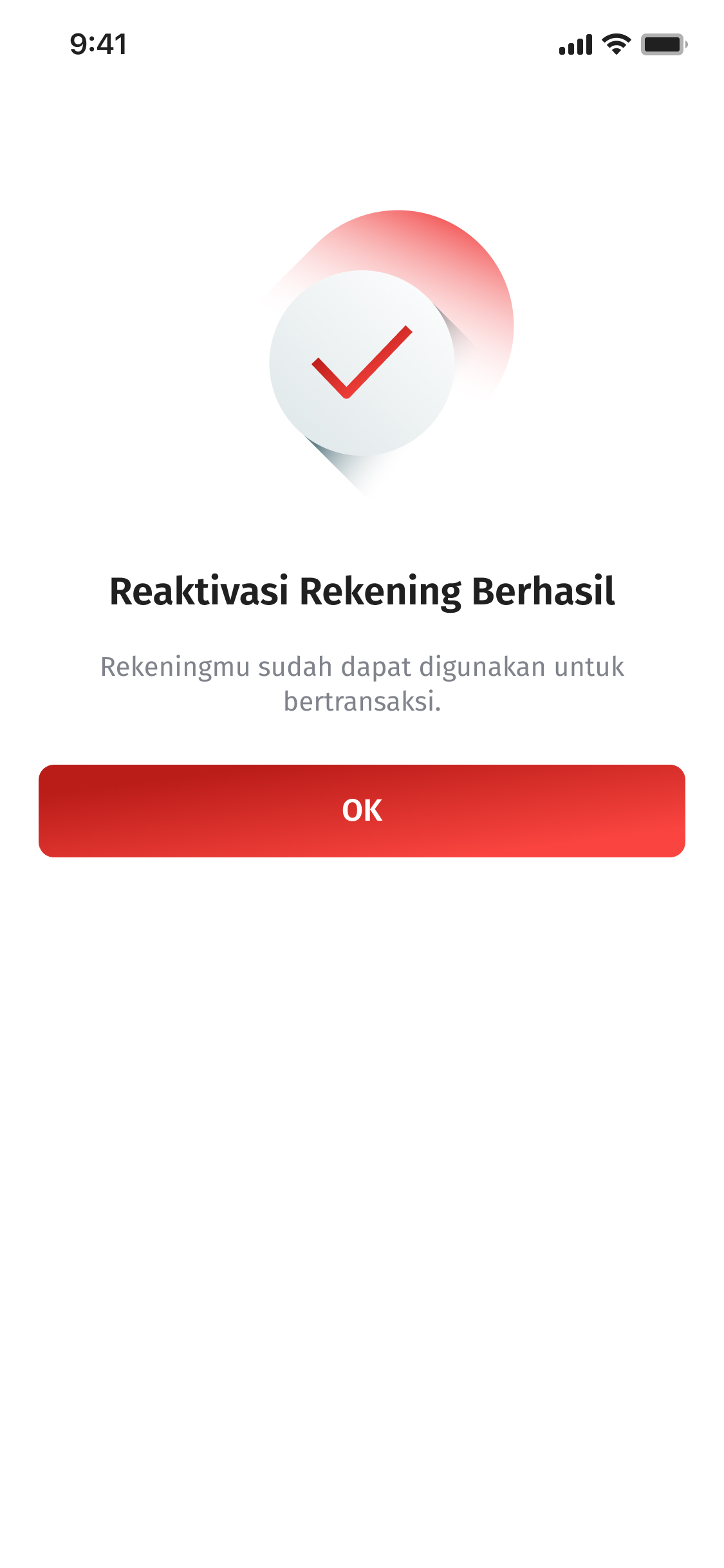
Reactivation Successful​

If the verification is successful, the account will be successfully reactivated and its status will change to active ​

Step 4

Artikel Card Image
Artikel Card Image
Artikel Card Image
Artikel Card Image
Artikel Card Image
Artikel Card Image
Artikel Card Image
Artikel Card Image
Artikel Card Image
Device Frame

Open OCBC mobile

Login OCBC mobile

Step 1

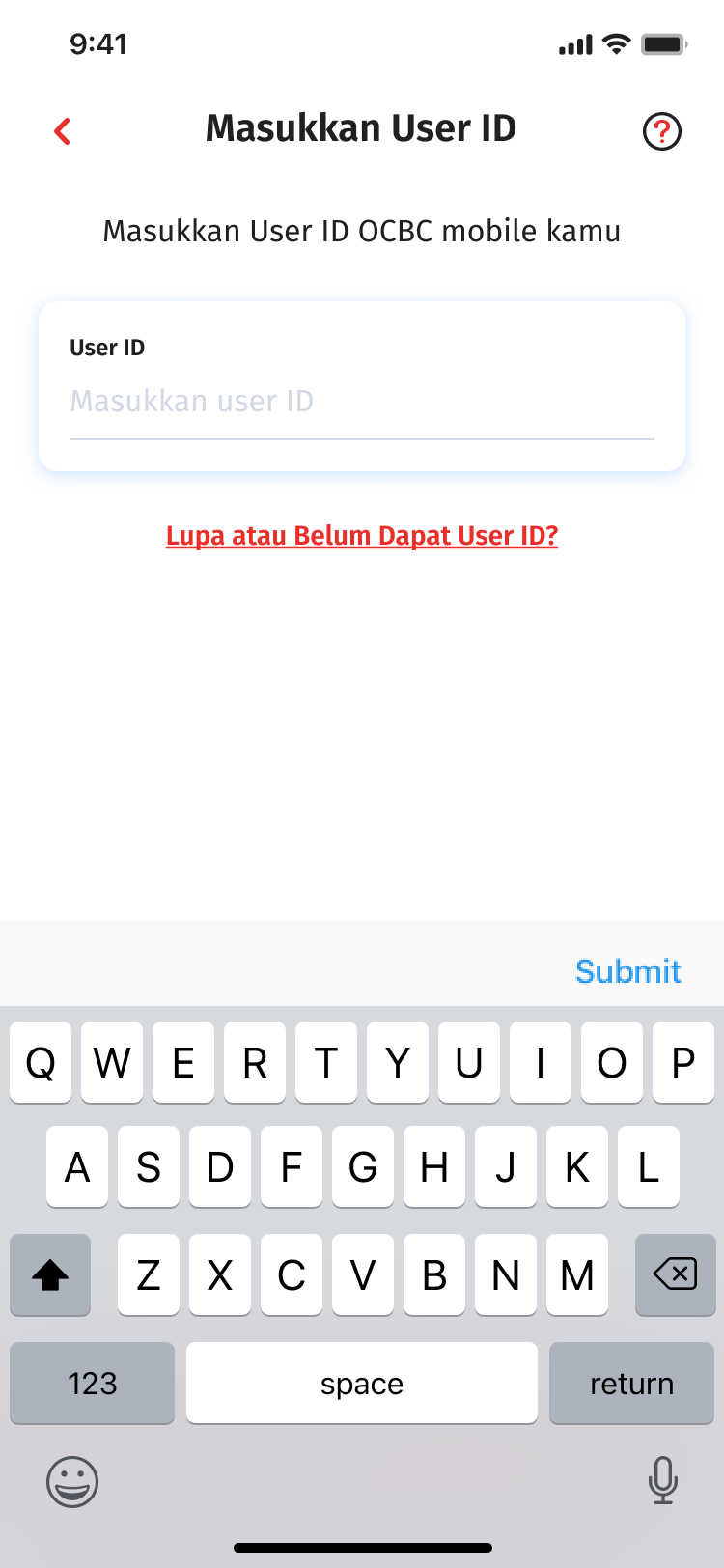
Input User ID

If you forgot your User ID, choose “Forgot or Haven’t Received User ID Yet?” button

Step 2

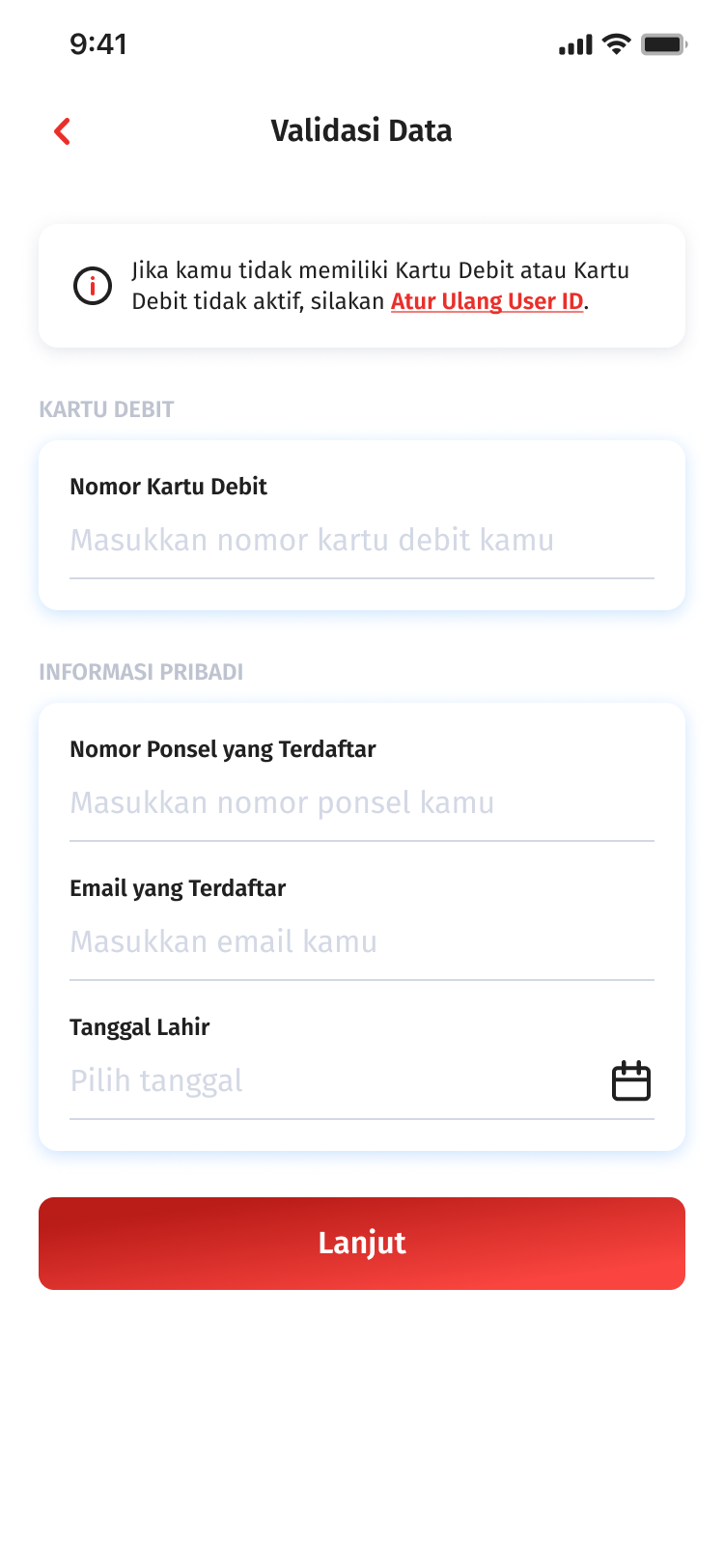
Data Validation

If identity (Debit card/mobile number/email) lost or different, click “ Reset User ID”

Step 3

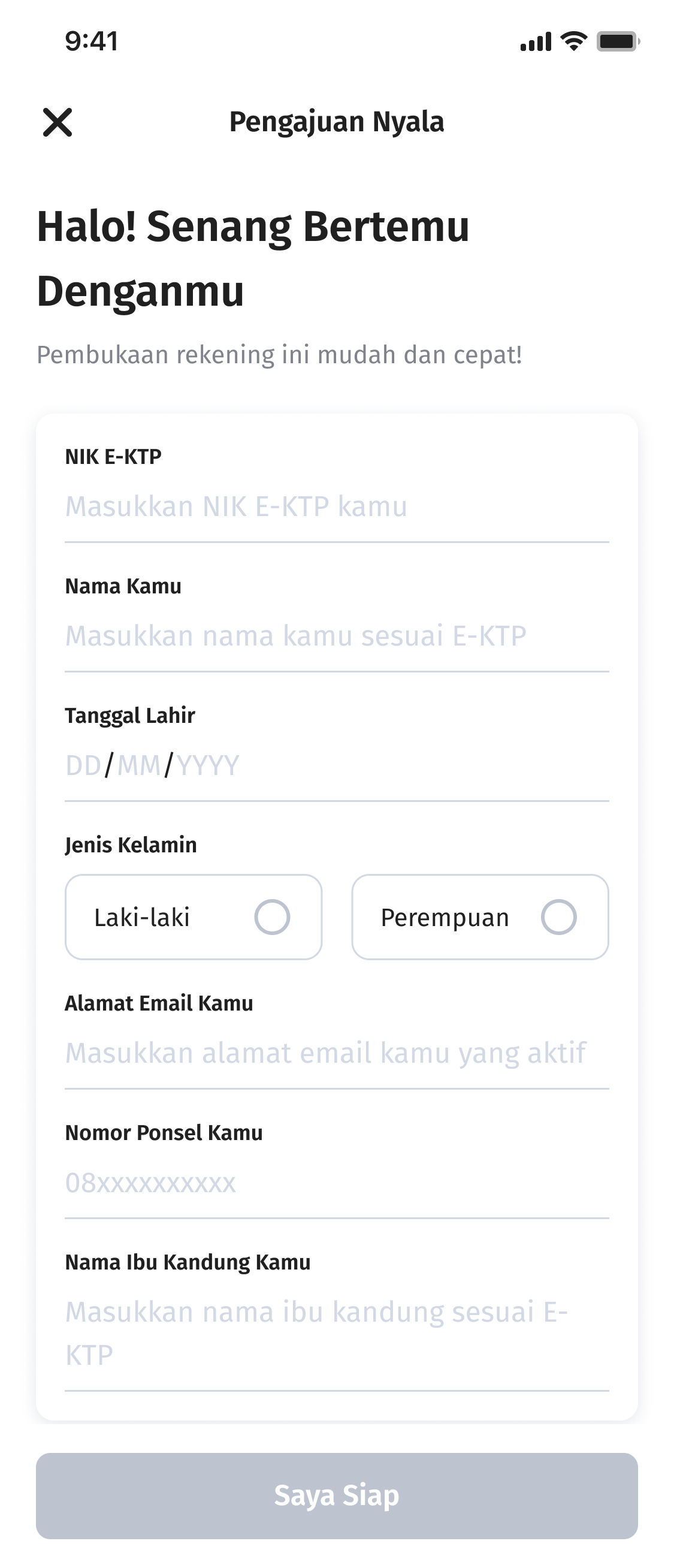
Fill in Personal Data

Complete your personal data

Step 4

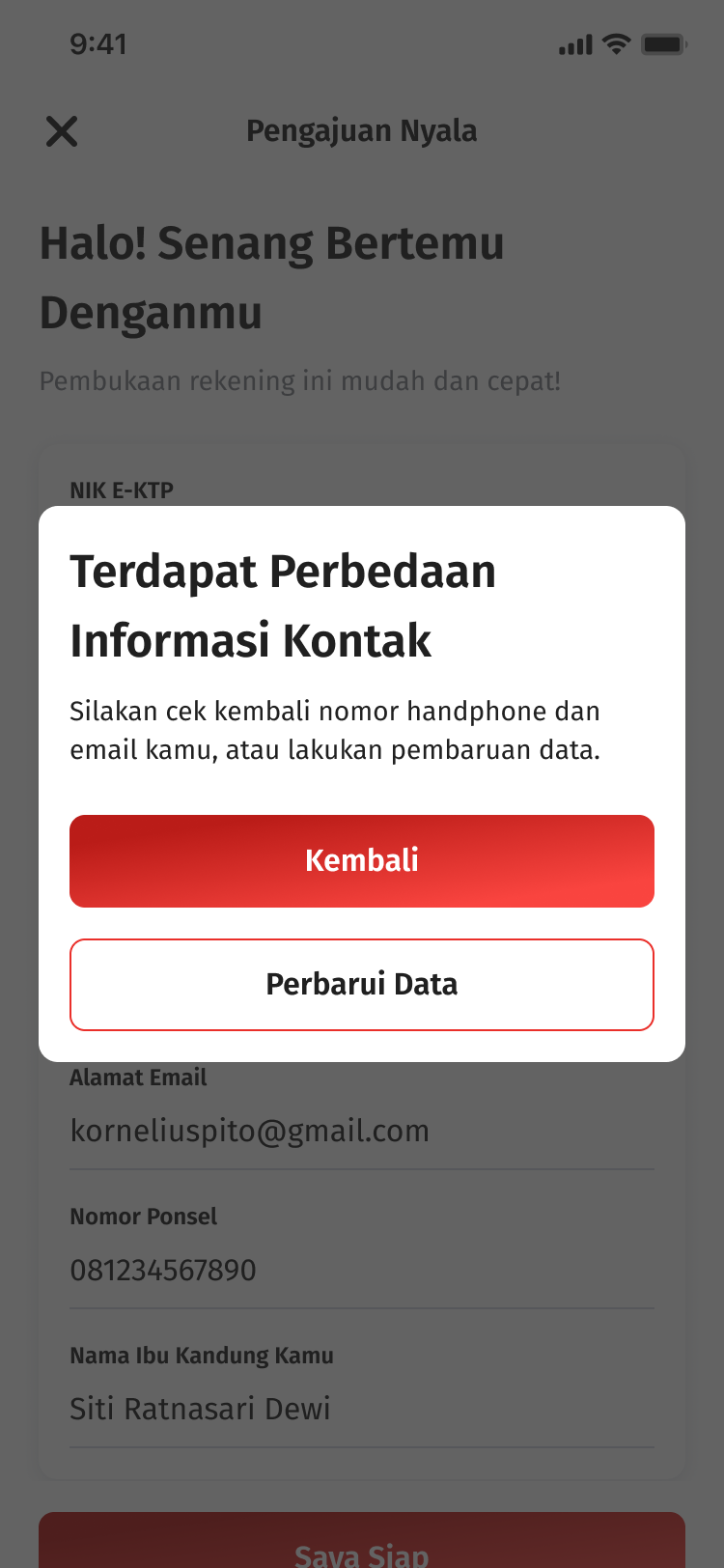
If there is a difference in contact information

Check your mobile number and email, or update your data by clicking “Update Data"

Step 5

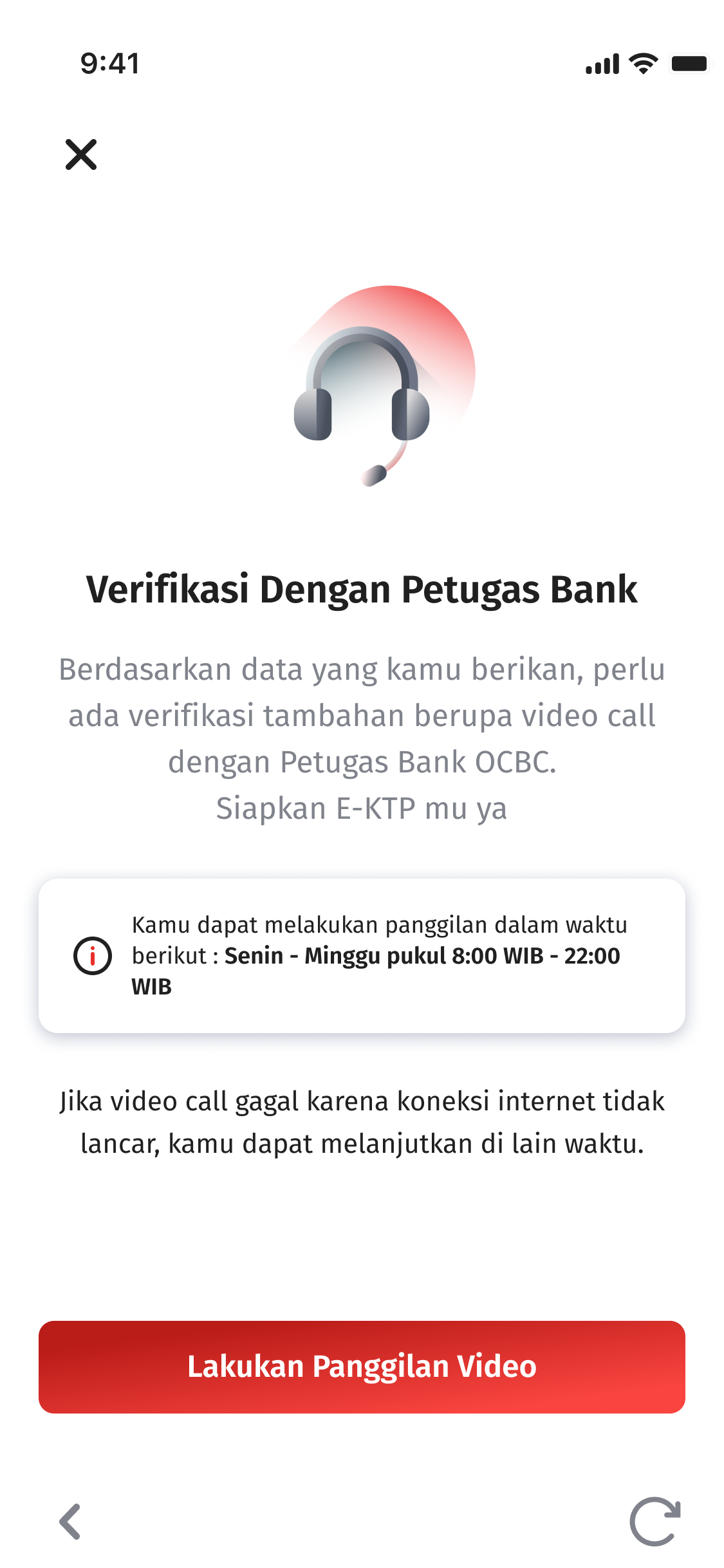
e-KYC & v-KYC Process​

Prepare your ID Card and continue with video verification with the bank

Step 6

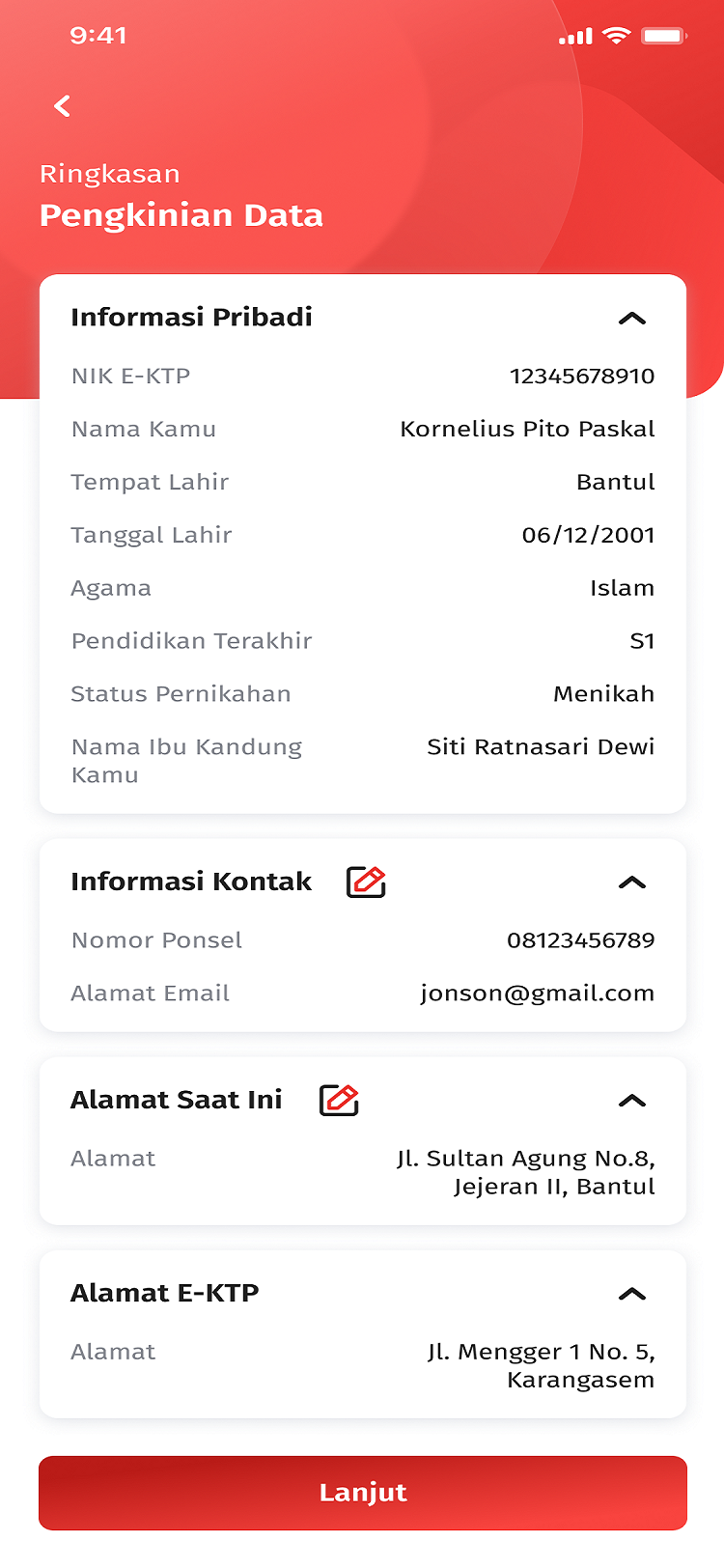
Check Data Summary

Re-check the data cummary and click save

Step 7

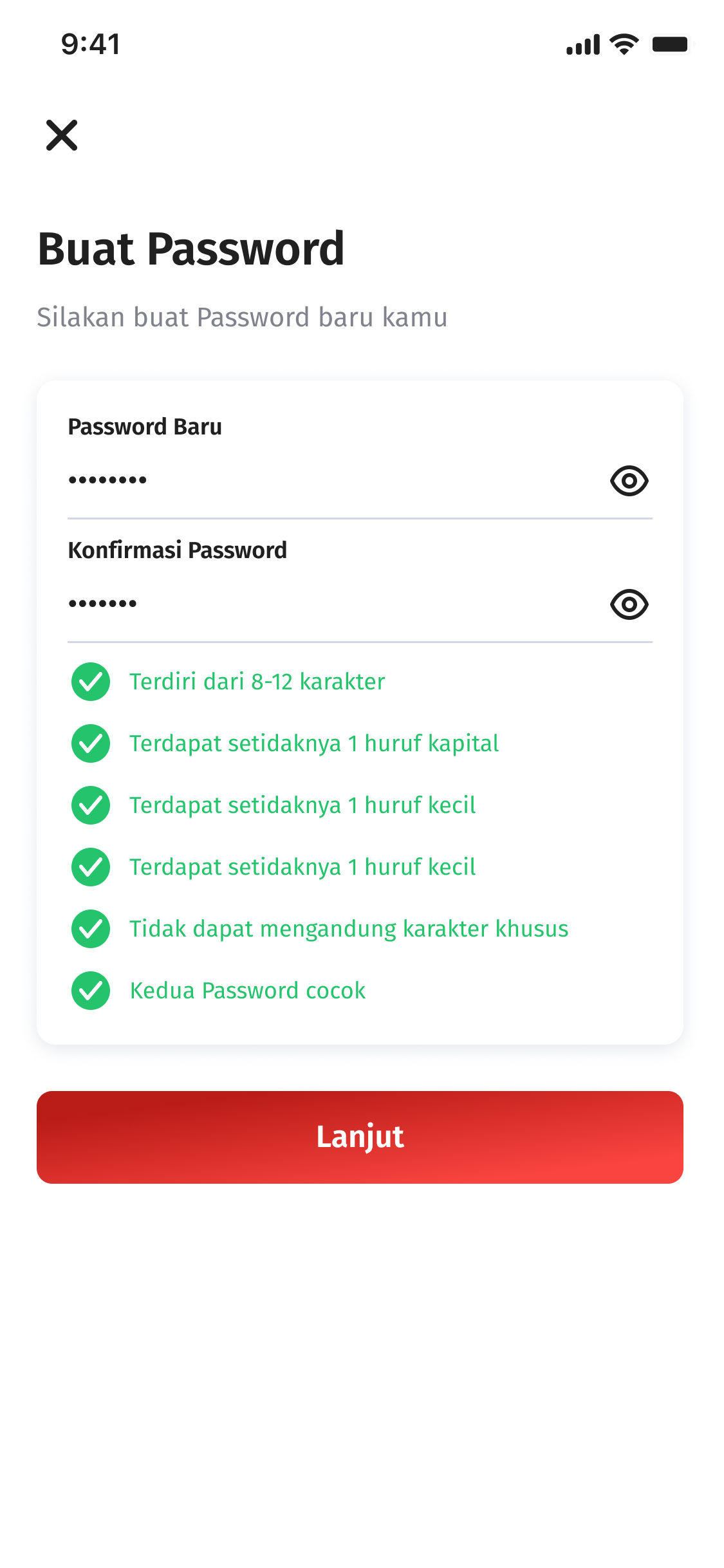
Create a Password

User ID Setting was successful. Continue by creating a new login password.​

Step 8

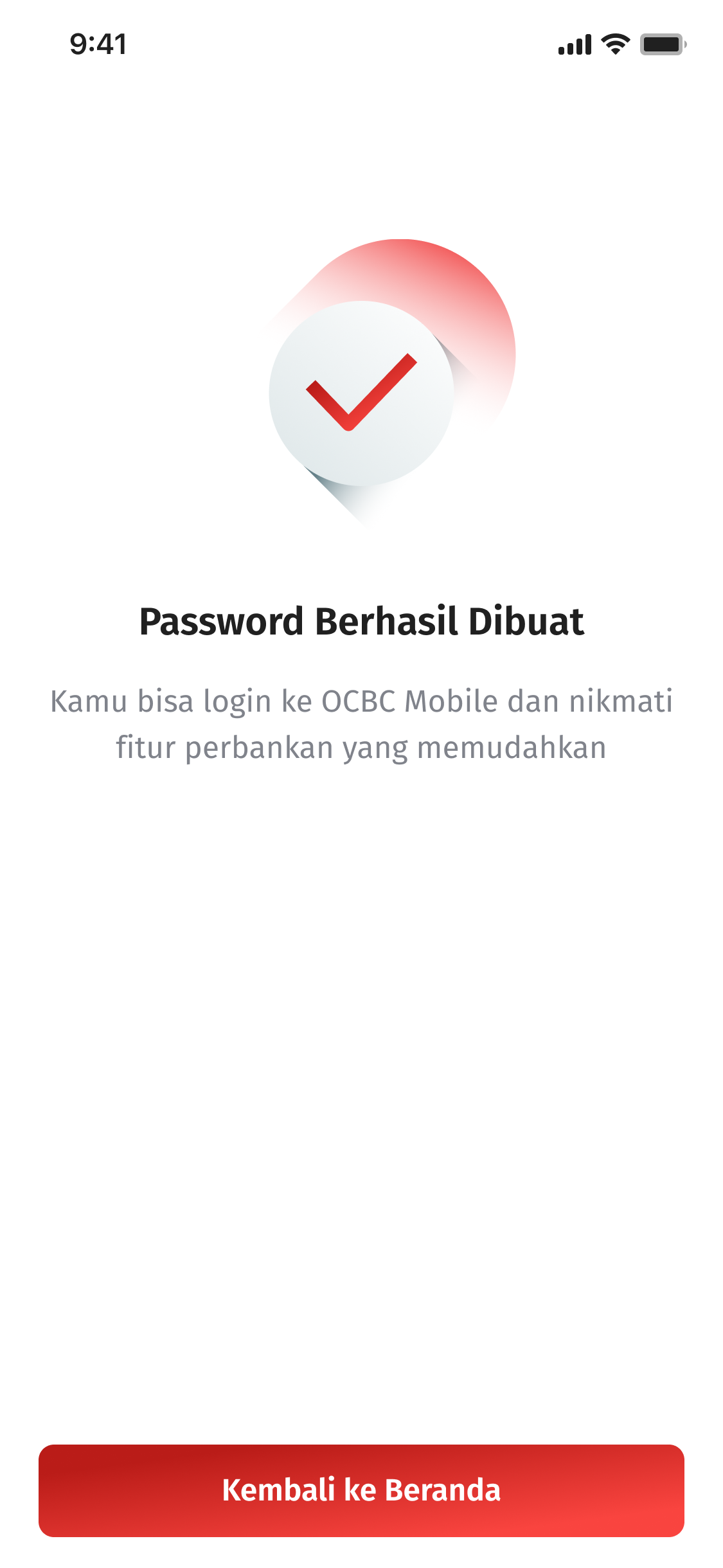
Successful

Login password OCBC mobile successfully created. Login again to OCBC mobile for enjoy various feature.

Step 9

Smart spending with daily discounts from OCBC Global Debit

Different offers every day, from Monday to Sunday

Smart spending with promo QRIS OCBC mobile​

Promo Rintis​

Cashback up to IDR 25.000 using QRIS OCBC mobile ​

Smart Saving, start saving with a minimum of IDR 2 mio and get a bonus

Cash reward up to IDR 600.000 / 35.000 Poinseru!

More details Icon Chevron

Enjoy exclusive benefits join with Nyala/Premier Banking OCBC ​

Program Take Off

Premier Banking

FAQ

Frequently Asked Questions about Reaktivasi OCBC Mobile

What are the possible reasons a customer may fail to reactivate their account?​
  1. Invalid national ID Number )does not match thedata stored on the Bank/s system)
  2. The customer is listed as DP, blacklisted orclassified ad high-risk
  3. The e-KYC process was unsuccessful. 
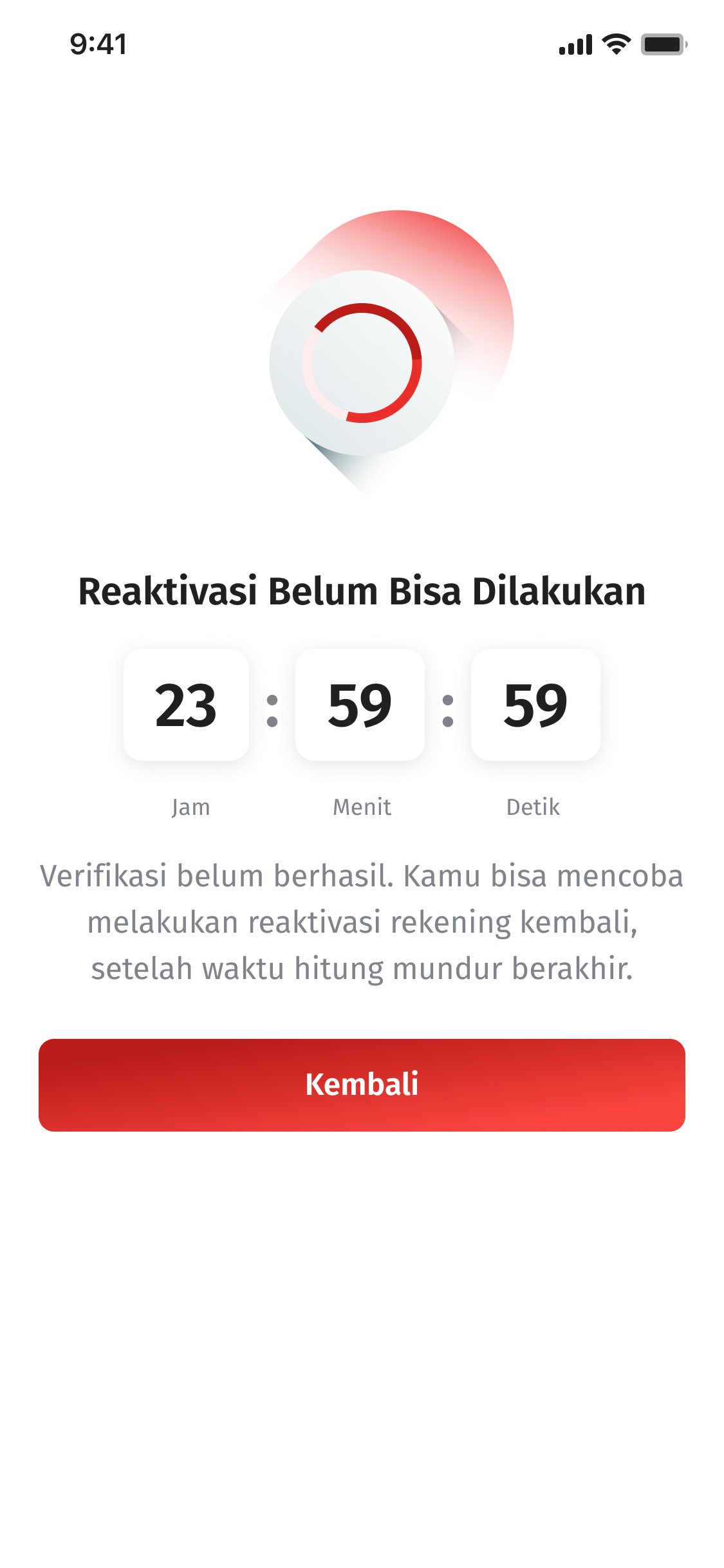
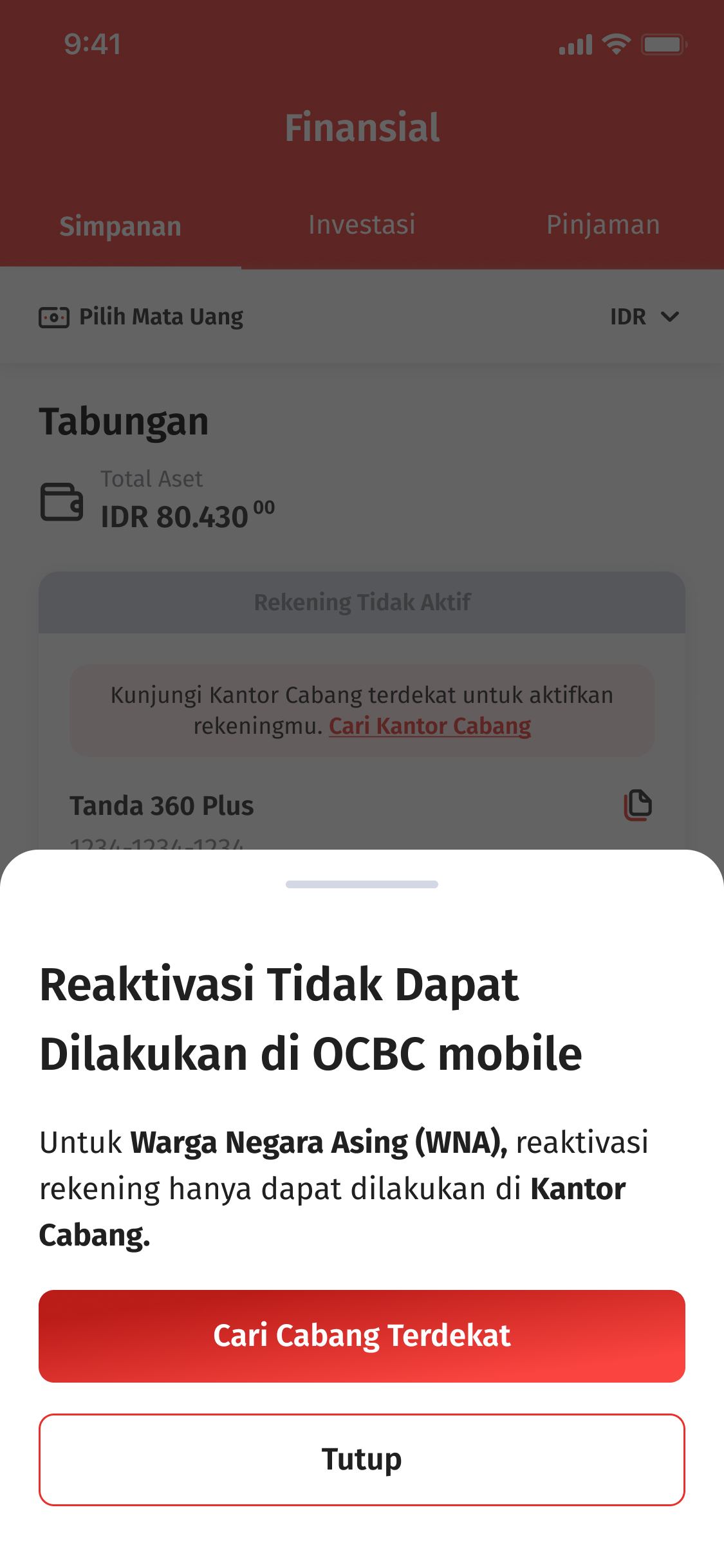
  4. The customer is a foreign national (non-Indonesia citizen)
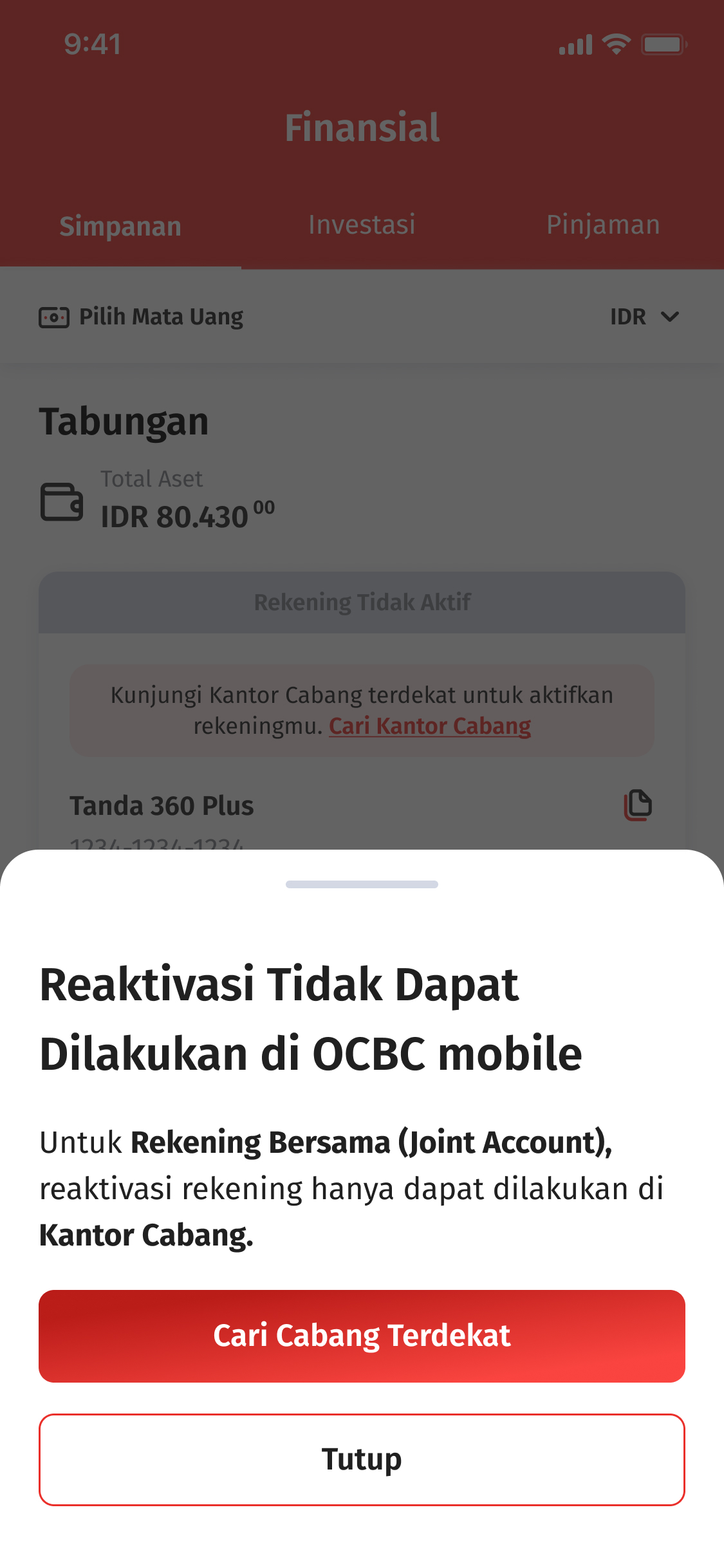
  5. The account is a joint account (Joint or/joint and)
  6. The email address has not been provided
  7. The system is currently undergoing the cut-off process.
Who can reactivate their accounts via OCBC mobile?

Customers whose accounts are inactive and who are Indonesian citizens are eligible to reactivate their accounts through OCBC Mobile. Foreign nationals are not eligible for self-service account reactivation via OCBC Mobile.✅

What types of accounts can be reactivated through OCBC mobile?

All account types can be reactivated through OCBC Mobile, except for joint accounts.

What if the customer's email address is not registered?
Customers can update their email address through More > Profile before proceeding with the reactivation process.
When can customers reactivate their accounts?

Account reactivation is available daily from 05:00 AM to 11:00 PM (WIB).

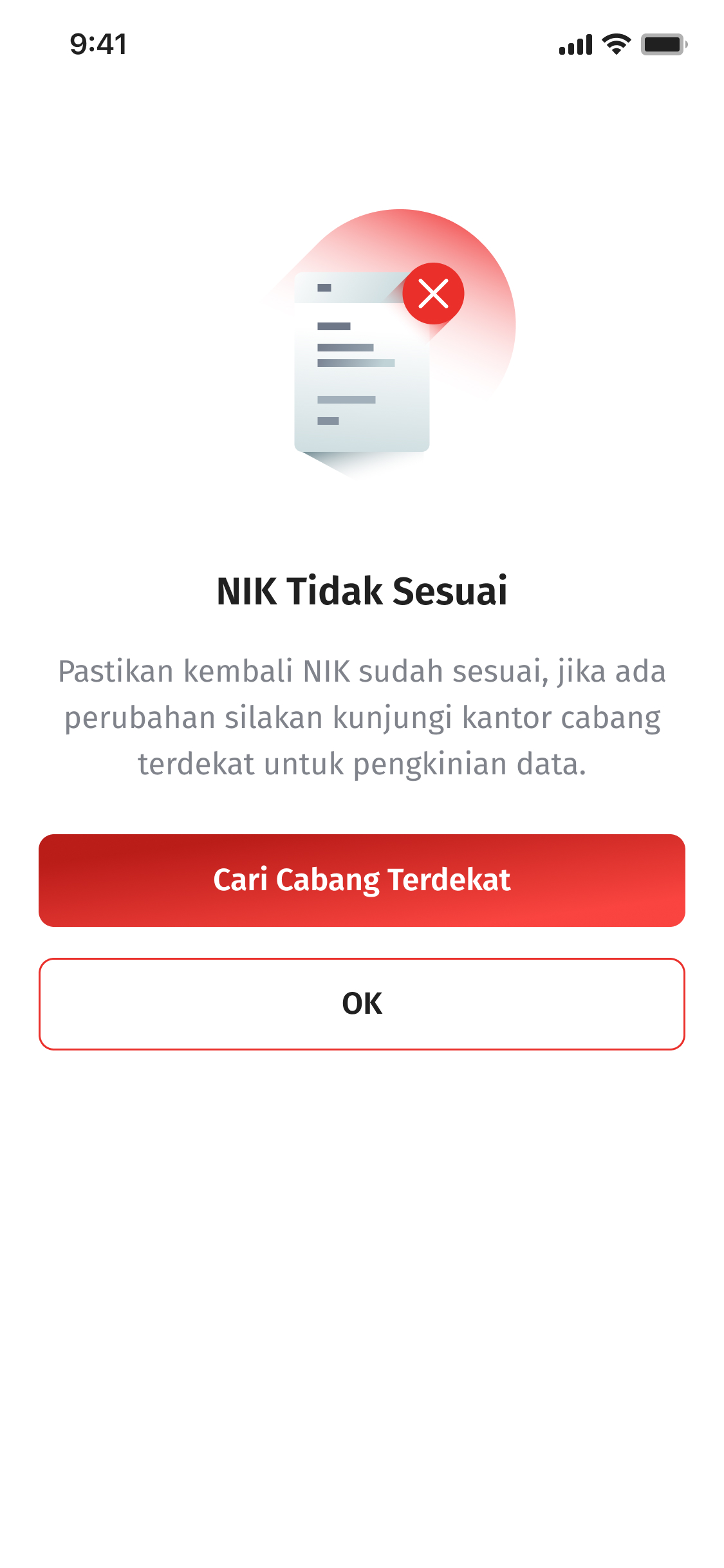
Why is the customer's NIK considered invalid during the reactivation process?

The NIK entered by the customer will be automatically compared with the NIK registered in the Bank's system (the NIK used during account opening or the latest customer data update). Customers must ensure that the NIK entered matches the one registered in the system. If there has been a change to the NIK, customer data must be updated at a branch.

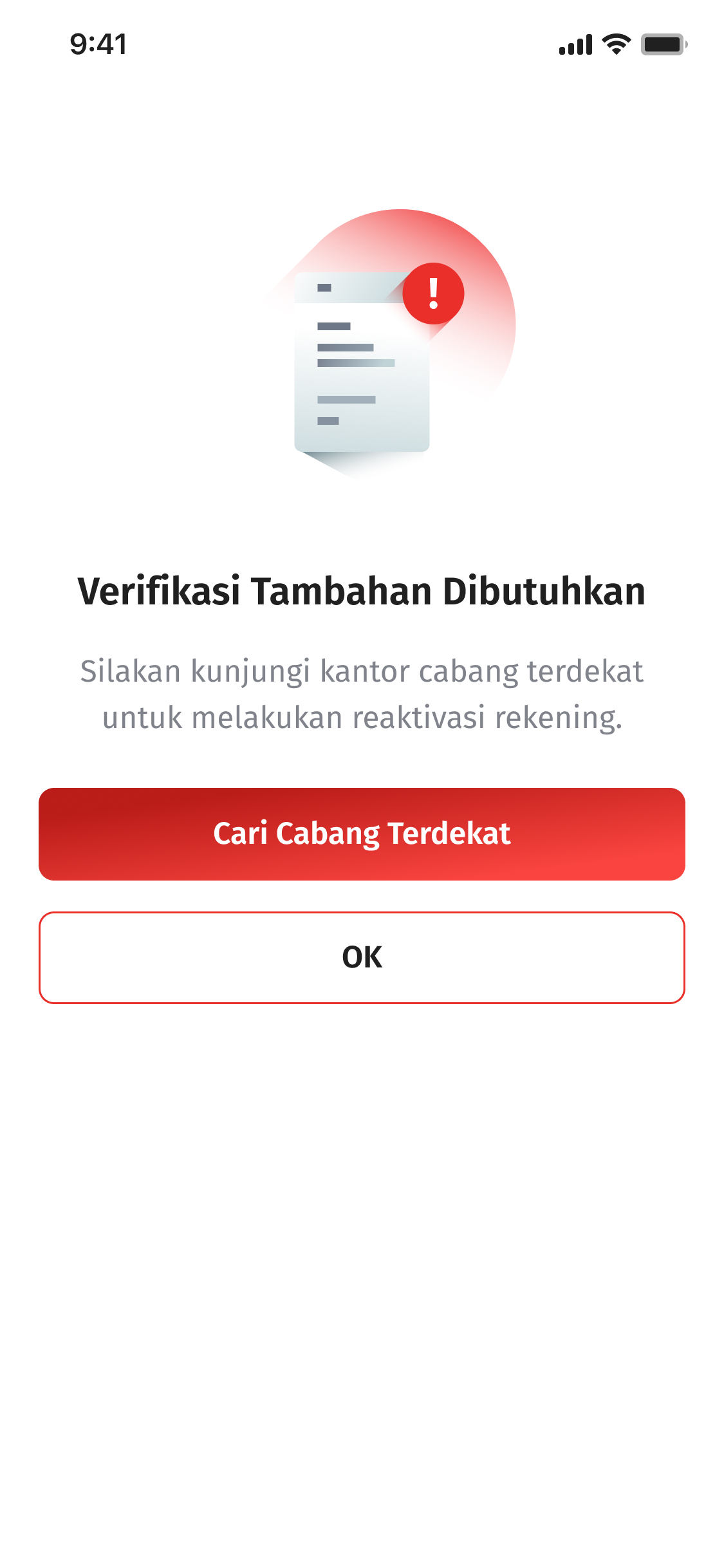
Why is the customer informed that additional verification is required?

Additional verification is required for customers who are categorized as DPN, Blacklisted, or High Risk. These customers are not eligible for self-service account reactivation through OCBC Mobile.

What happens if the customer fails the e-KYC verification?

Customers are allowed up to three (3) e-KYC verification attempts per day. If all attempts are unsuccessful, they may try again after 24 hours or visit the nearest branch for assistance.

Can't find the question you're looking for?

View Other Questions

Banking at Your Fingertips

Download OCBC mobile now!